

Learn how to set up granular access permissions in Approveit, create custom user roles, restrict workflow access, and manage approval permissions across teams and departments.
This guide explains how to configure granular access permissions step by step.
Setting Up Custom User Roles in Approveit
In the Team section, open the Roles tab located next to the Users tab. Approveit includes two default roles – Admin and Member – which cannot be removed. To create a new custom role, click New Role.
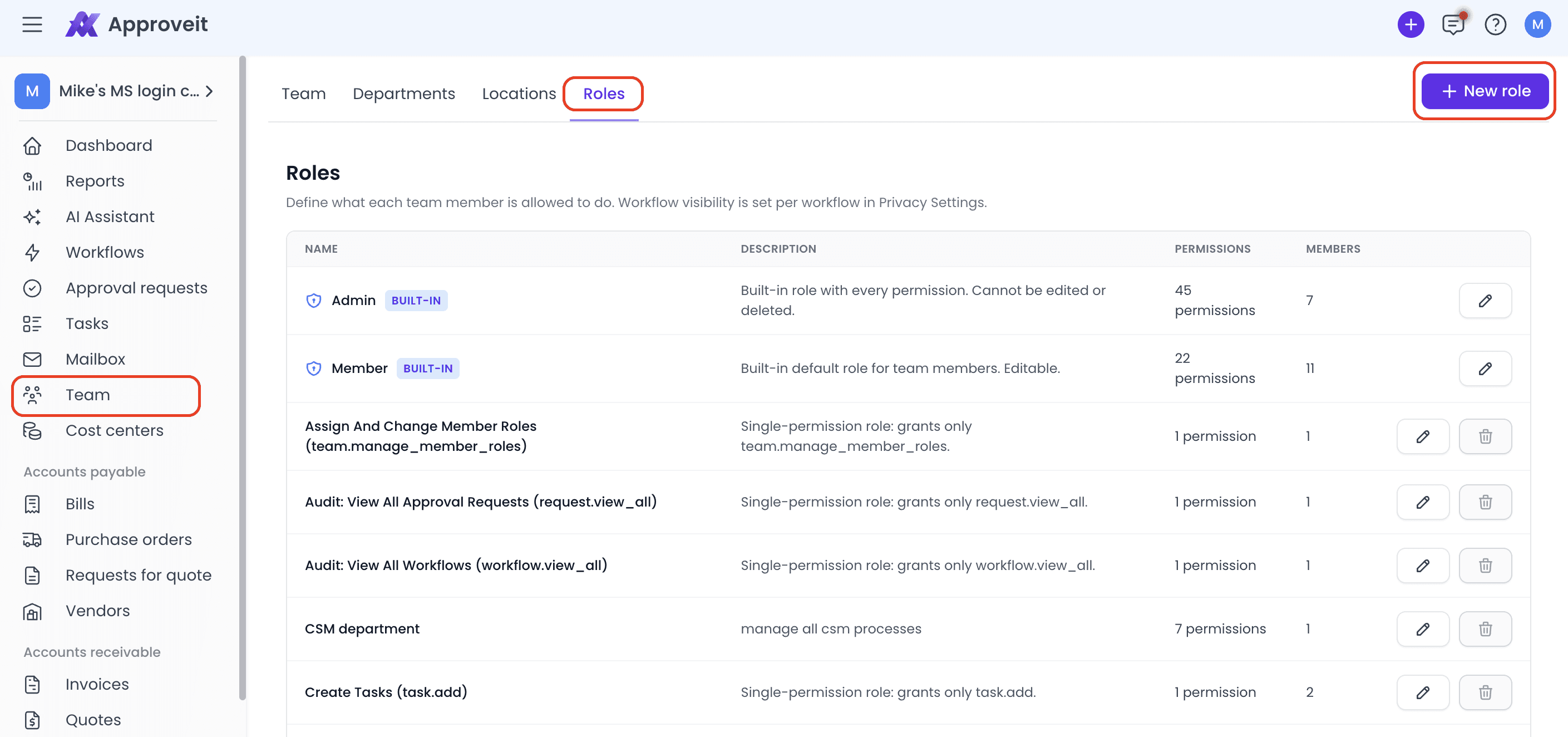
Enter a clear role name and description. For example, you can create roles such as:
Form Owner
Finance Department – Romania
HR Department – Vietnam
Workflow Auditor
Next, select the permissions that should be available to users with this role. You can configure access to:
Workflows
Approval requests
Audit features
Accounting modules
Purchase orders
Vendors
Cost centers
Taxes
Team settings
Other navigation menu items
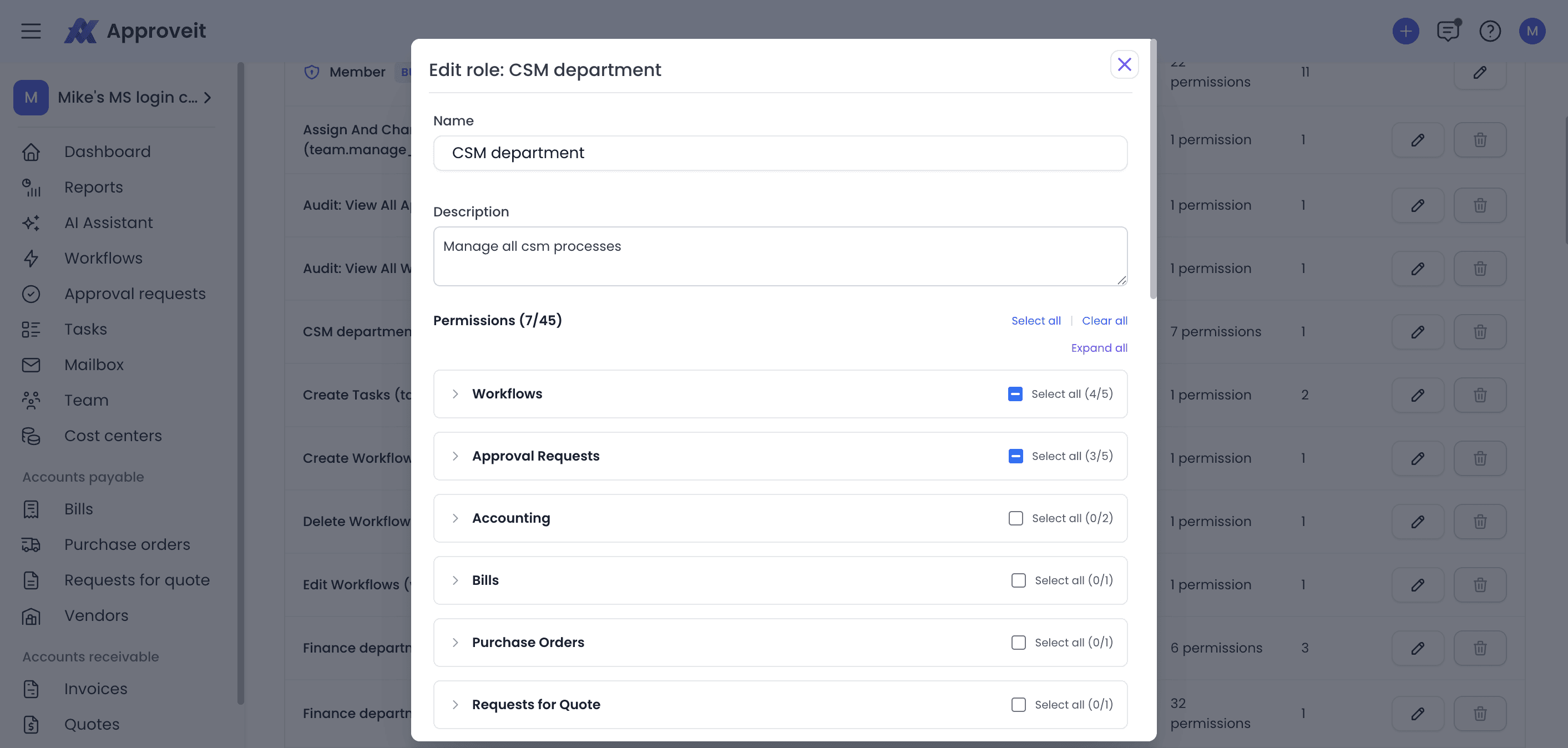
Configuring Workflow Permissions.
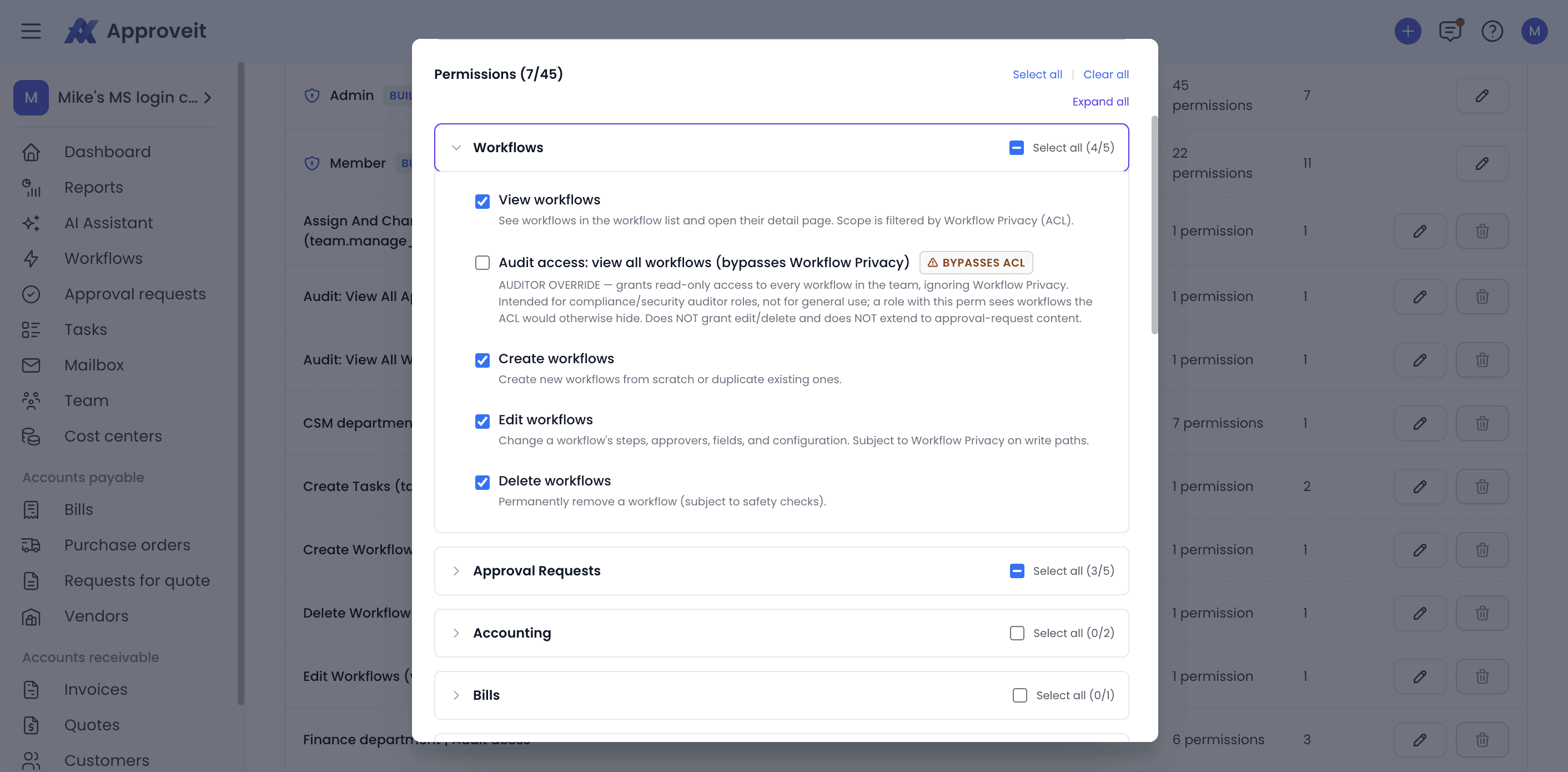
Workflow permissions define which actions users can perform in the workflow management section.You can allow users to:
View workflows
Create workflows
Edit workflows
Delete workflows
Configuring Approval Request Permissions.
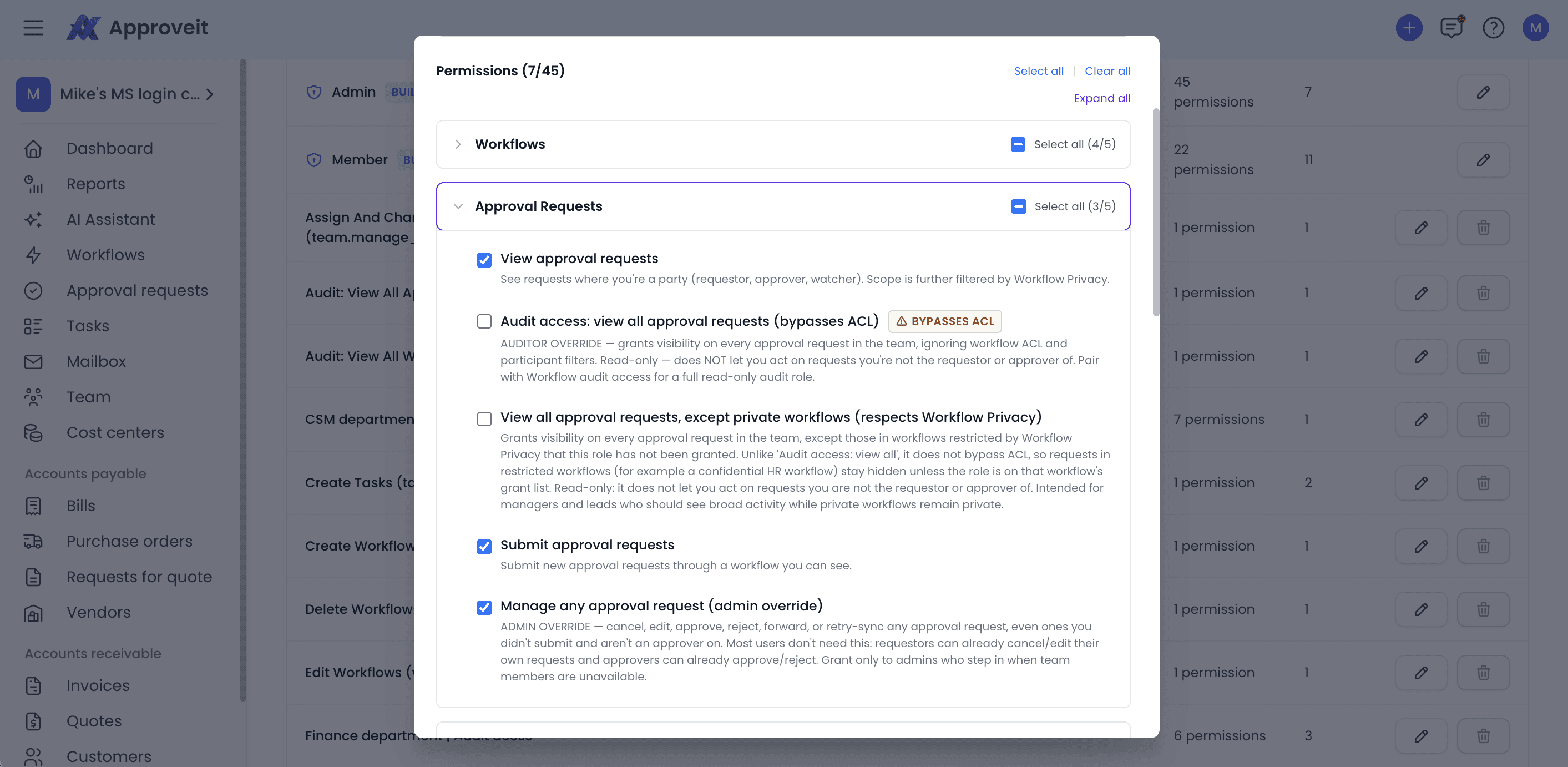
Approval request permissions control how users interact with requests submitted through Approveit approval workflows.
You can allow users to view or submit approval requests.
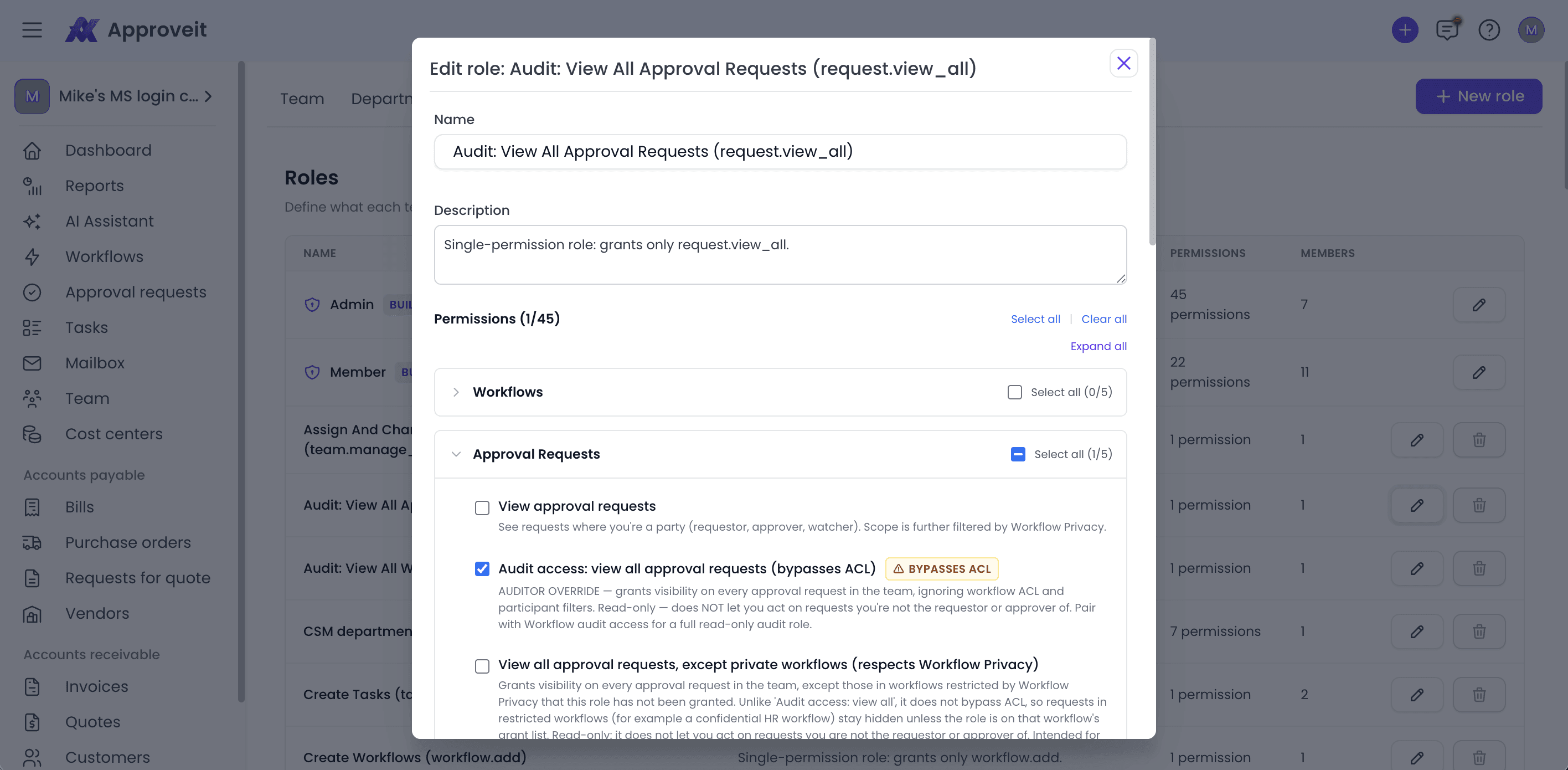
The standard View approval requests permission only gives users access to requests where they are directly involved as a requester, approver, or watcher. It does not provide access to every approval request in the workspace.
Assigning User Roles to Approval Workflows
Custom roles define what a user is allowed to do. Workflow access settings define which specific approval workflows the user can access.
To assign a role to a workflow:
Open the required workflow.
Click Edit.
Open Access settings.
Enable restricted access.
Add the required user role or permission group.
Save the changes.
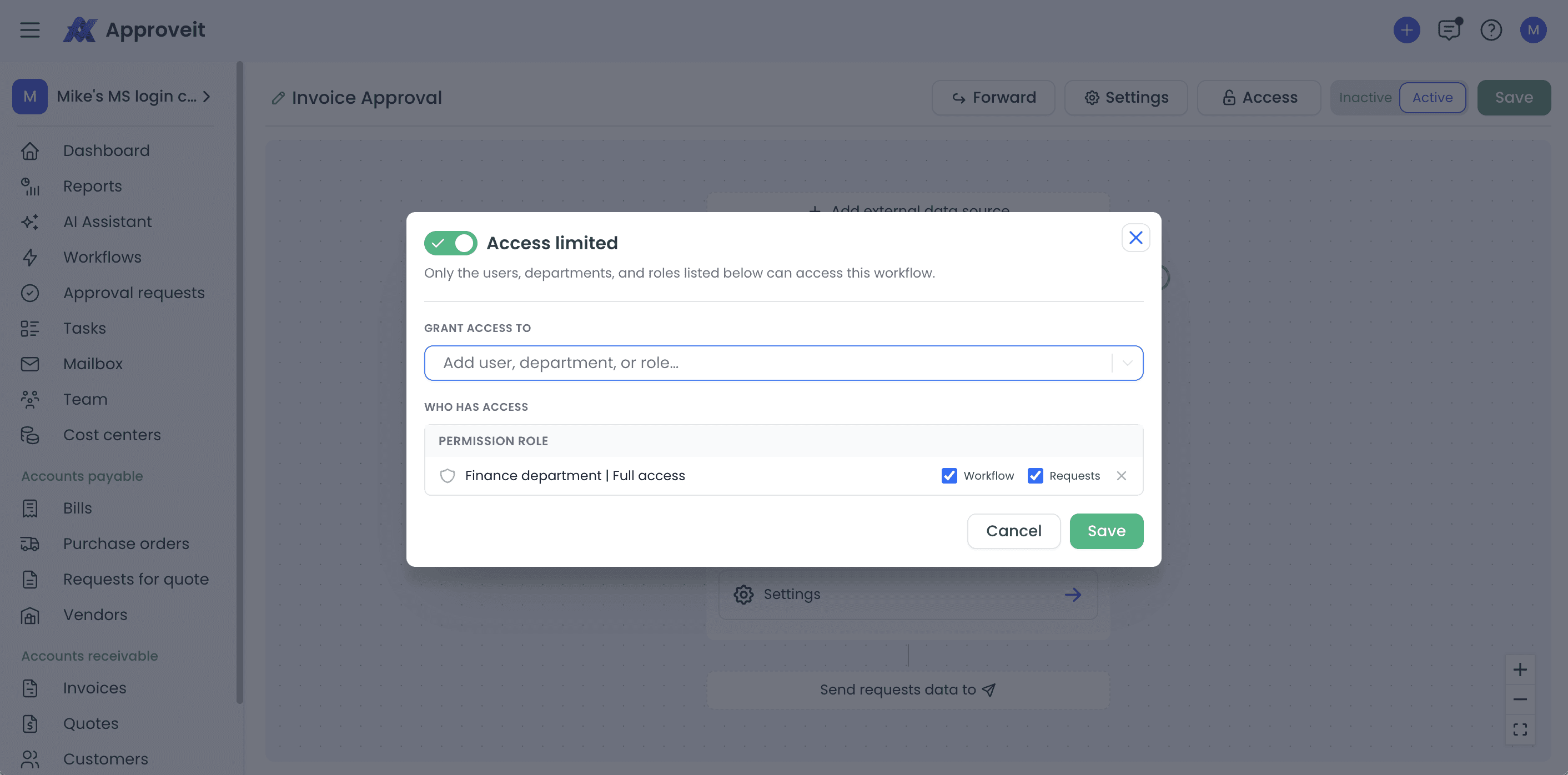
Only users who match the configured access rules will be able to view or use the workflow. If no restrictions are configured, the workflow remains available to all eligible users by default.
Managing Access Across Departments and Legal Entities
Granular permissions are especially useful for organizations with multiple departments, countries, subsidiaries, or legal entities.
For example, a company may have separate approval workflows for:
Finance Department – Romania
Finance Department – Germany
HR Department – Vietnam
Procurement Department – United States
Create a separate role for each department or entity and assign it to the corresponding approval workflow.
Users who need access to several entities can be assigned multiple roles. This allows them to work across different approval processes without giving them unnecessary access to the entire workspace.
Setting Up Audit Access
Audit access is designed for compliance, finance, security, and oversight users who need broad read-only visibility.
Approveit provides separate audit permissions for workflows and approval requests.
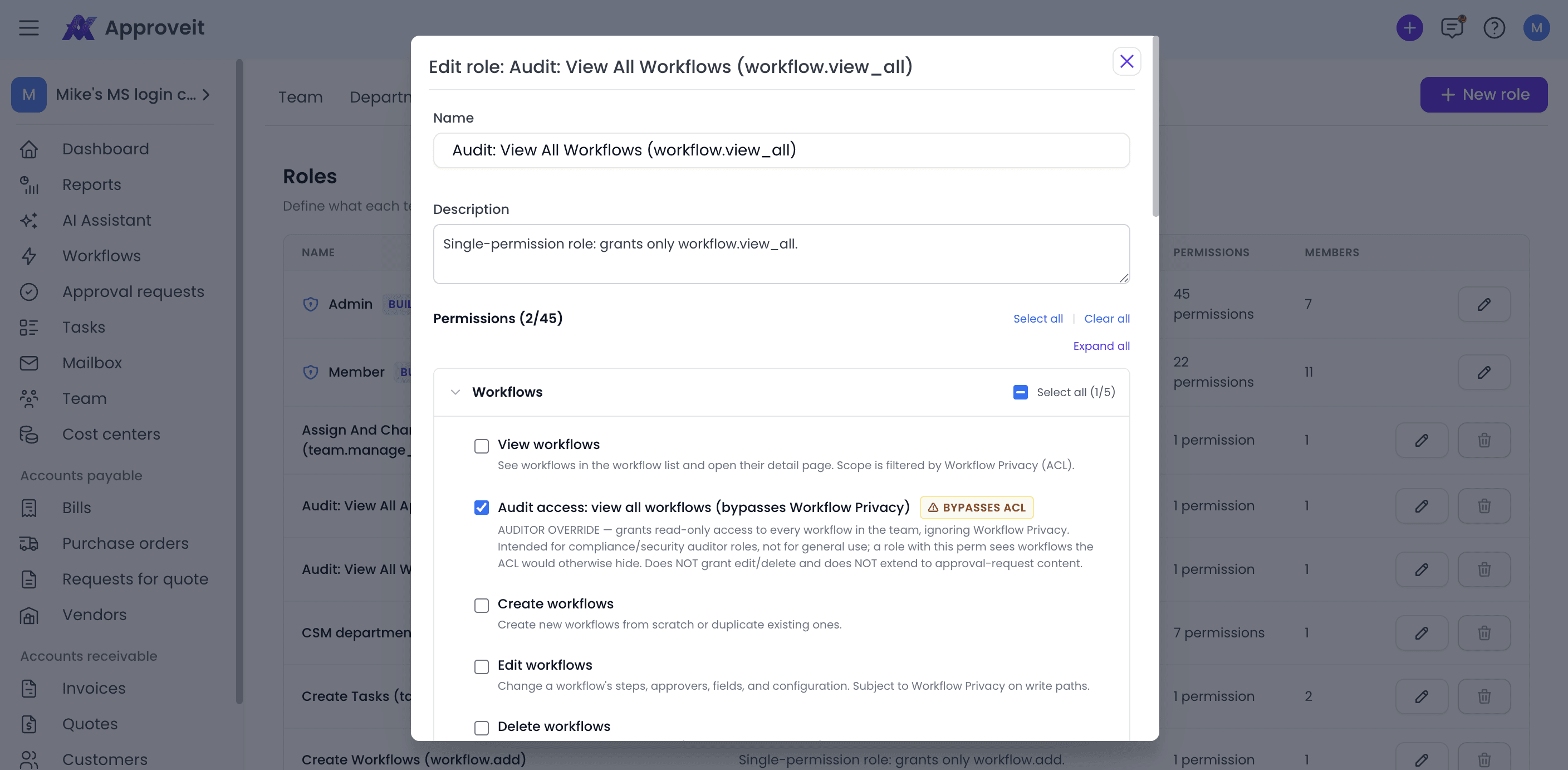
Workflow Audit Access
Workflow audit access allows users to view all workflows within the workspace, including workflows they would not normally be able to access.
This permission does not allow users to create, edit, or delete workflows.
Approval Request Audit Access
Approval request audit access allows users to review approval requests across the workspace without giving them permission to approve, reject, edit, or otherwise manage those requests.
This is useful for:
Compliance reviews
Internal audits
Financial oversight
Security reviews
Management reporting
How to Assign User Roles in Approveit
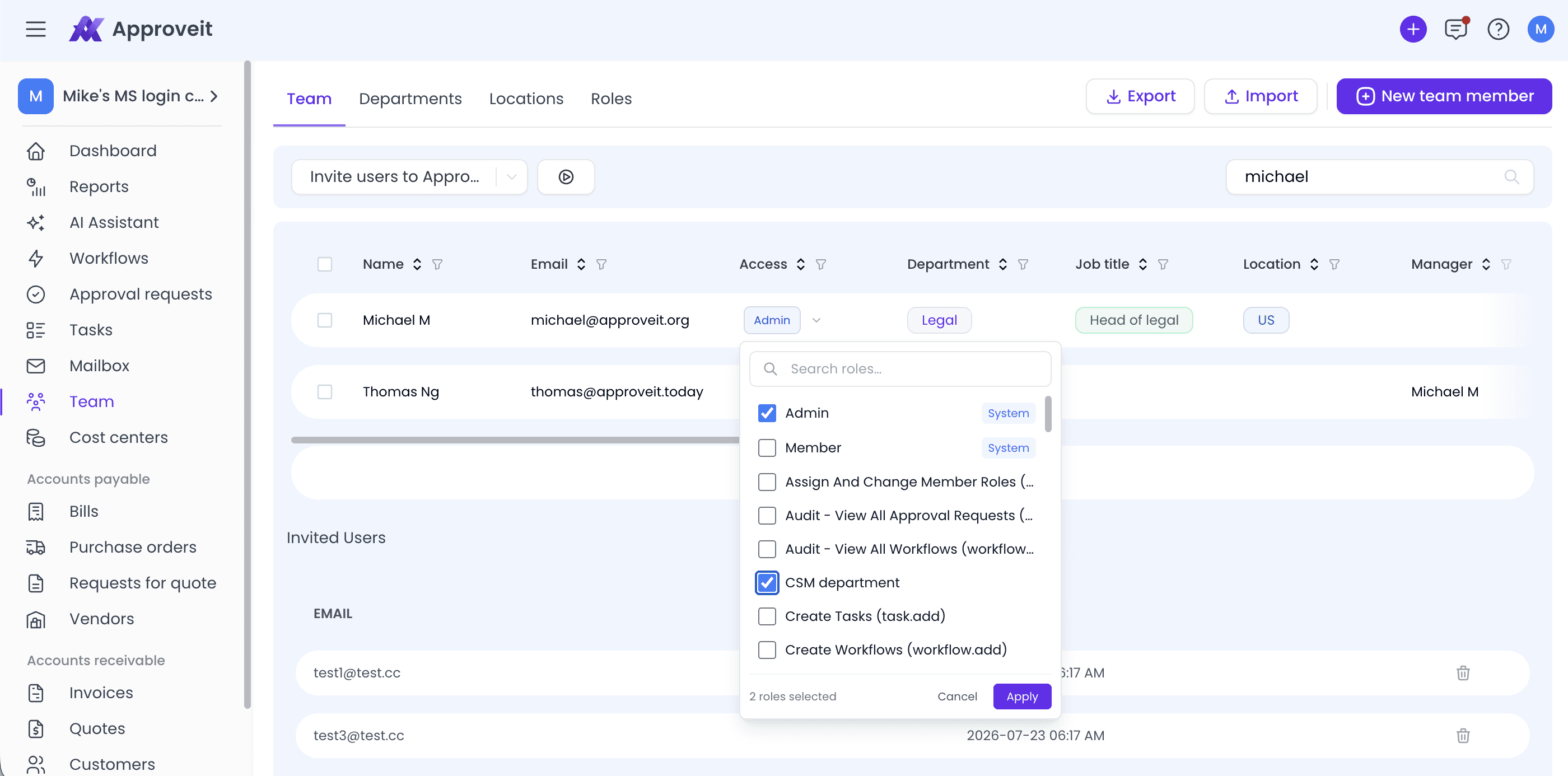
Once a custom role has been created, assign it to the required users directly from the Team tab.
To assign a role to a user:
Open the Team section.
Find the required user in the users list.
In the Access column, click the current access level or assigned role.
Select one or more roles from the dropdown list.
Click Apply to save the changes.
You can use the search field in the dropdown to quickly find the required custom role.
A single user can have multiple roles at the same time. For example, a user may have permission to create workflows, view approval requests, and access a specific department through separate roles.
The permissions available to the user are determined by the combination of all roles selected in the Access column.
If you have any questions or need further assistance, feel free to reach out to our
support team.