
What are conditional email notifications in Approveit?
Conditional email notifications allow you to automatically send emails based on request data inside your approval workflow.
Instead of sending the same notification to everyone, you can define rules that control:
when an email is triggered
who receives it
what data is included in the message
This helps reduce unnecessary emails and ensures that each request is sent to the right people with the right information.
How to set up conditional email notifications
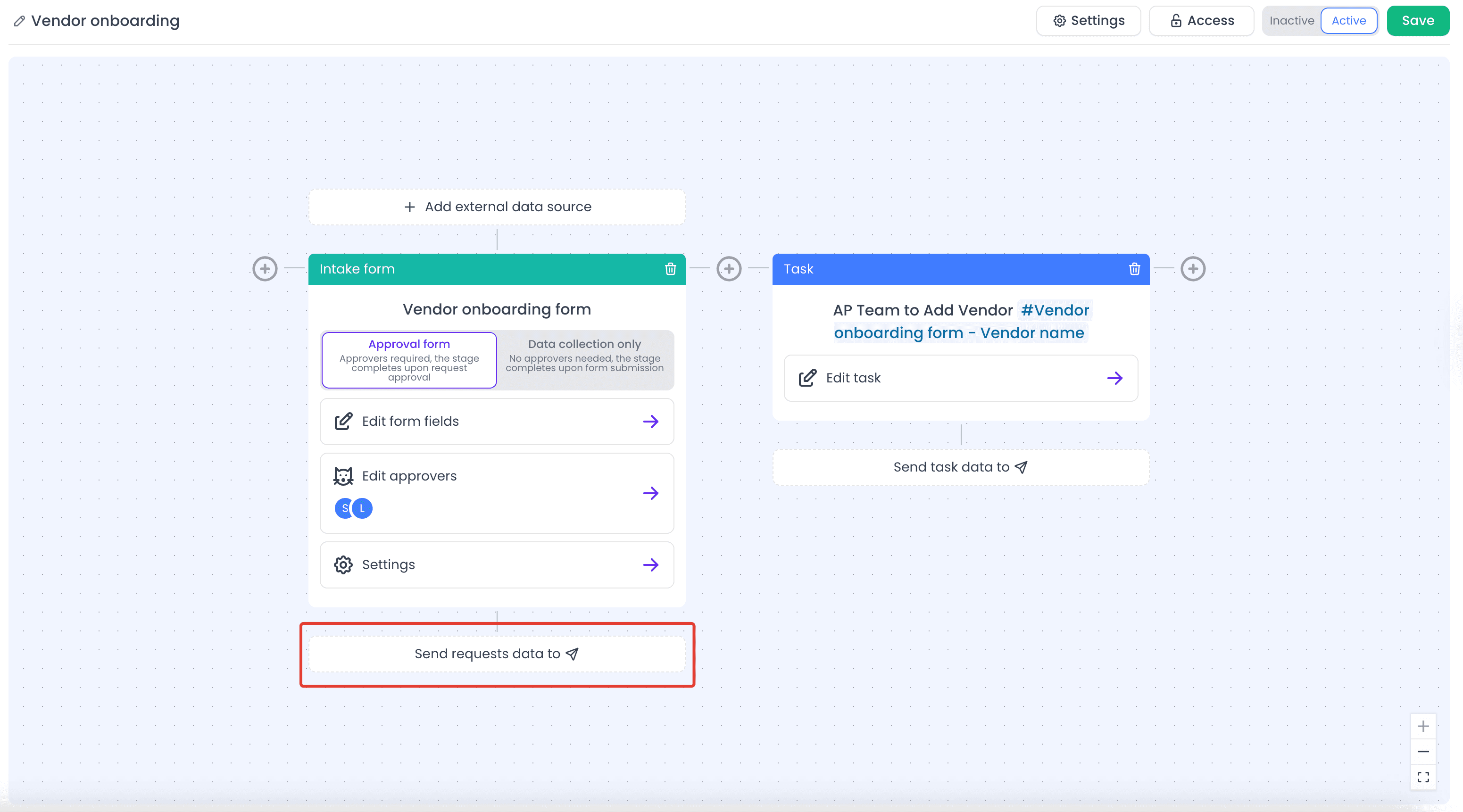
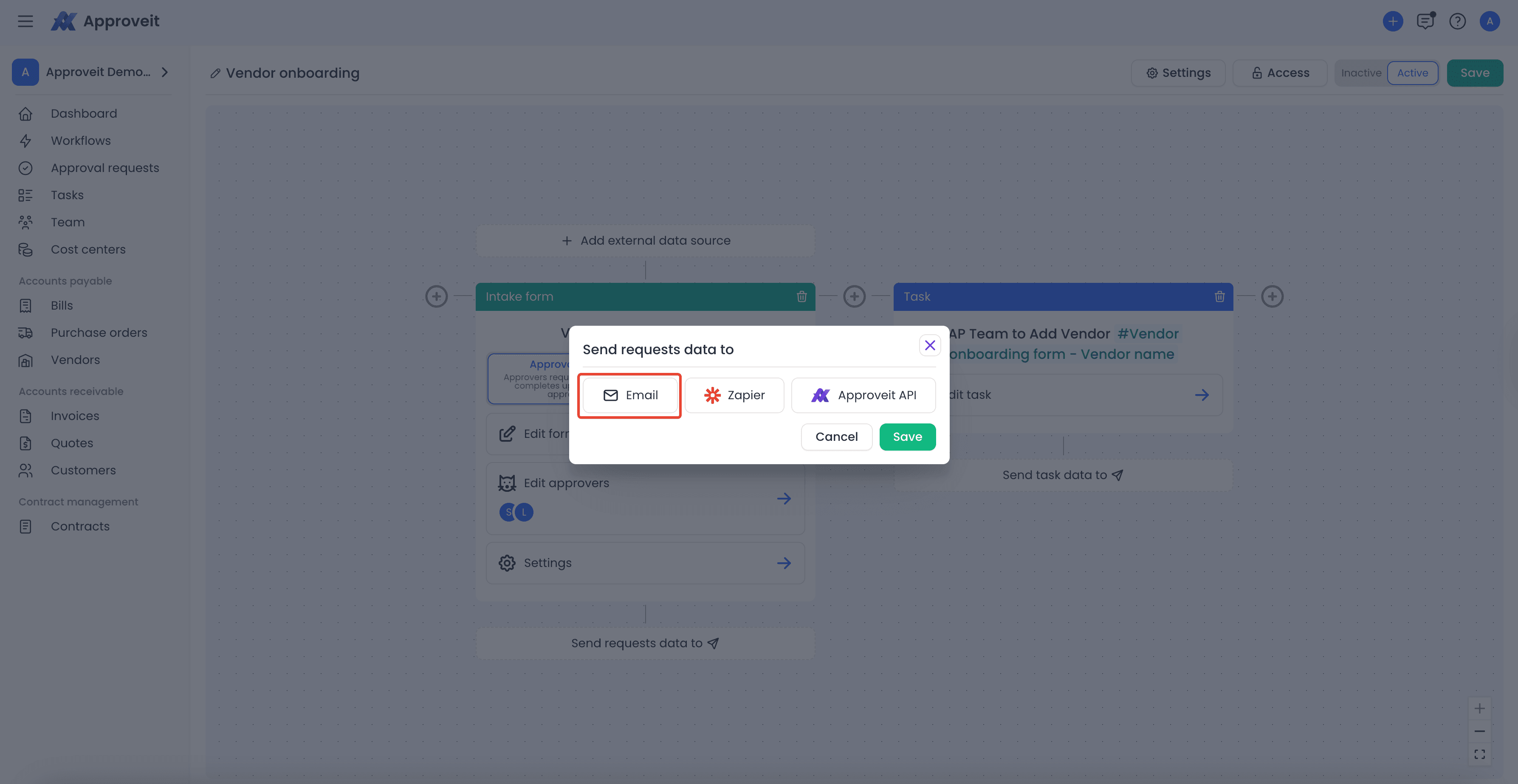
In the Intake form in the Workflow you need to click Send requests data to → Email.
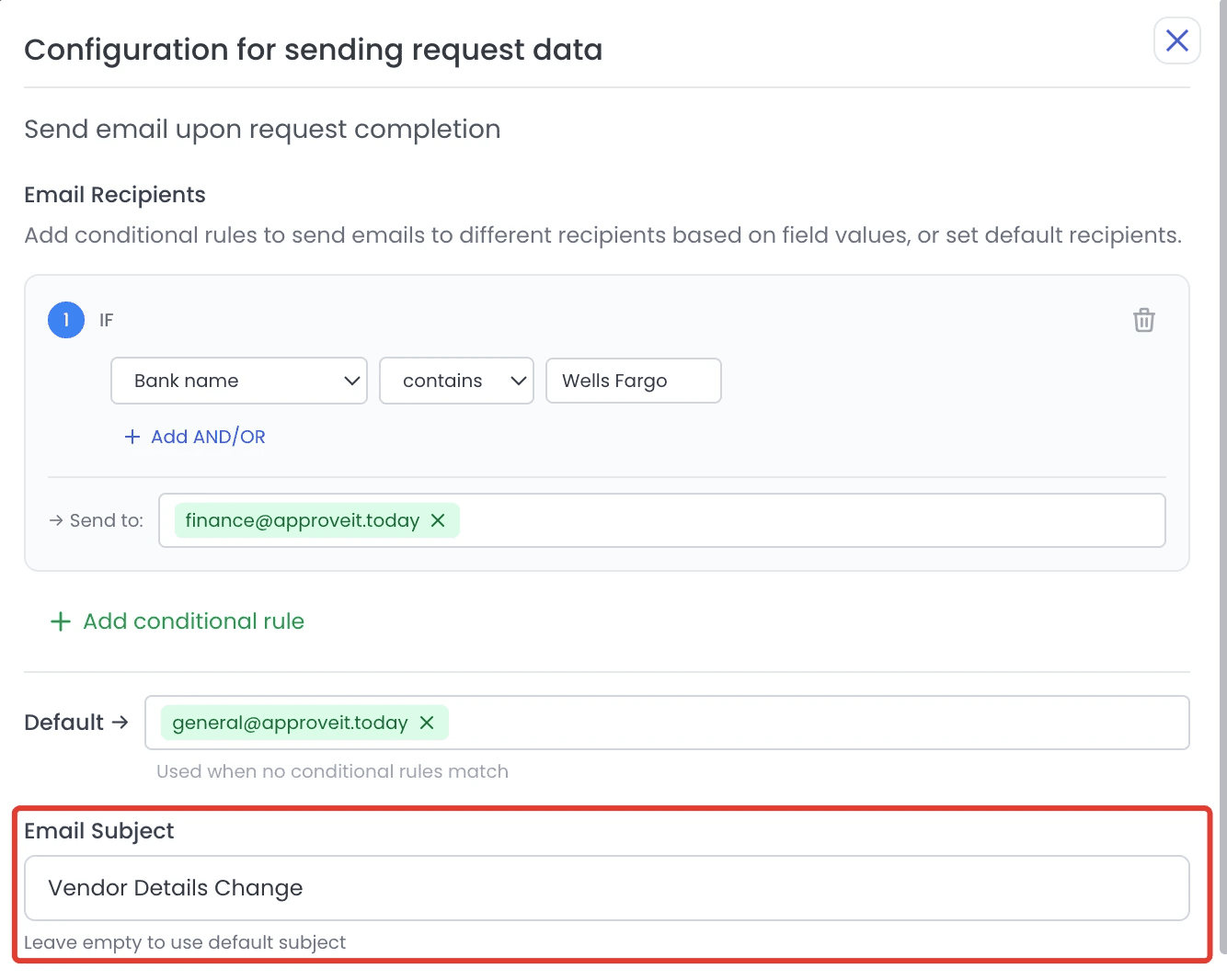
In the configuration form, you can set up conditional logic by selecting any field from the form, defining a condition (such as equals or contains), and specifying a value. Multiple conditions can be combined using AND / OR logic.
For each condition, you can specify the email recipients.
You can also define default (fallback) recipients. These email addresses are used when no conditions match.
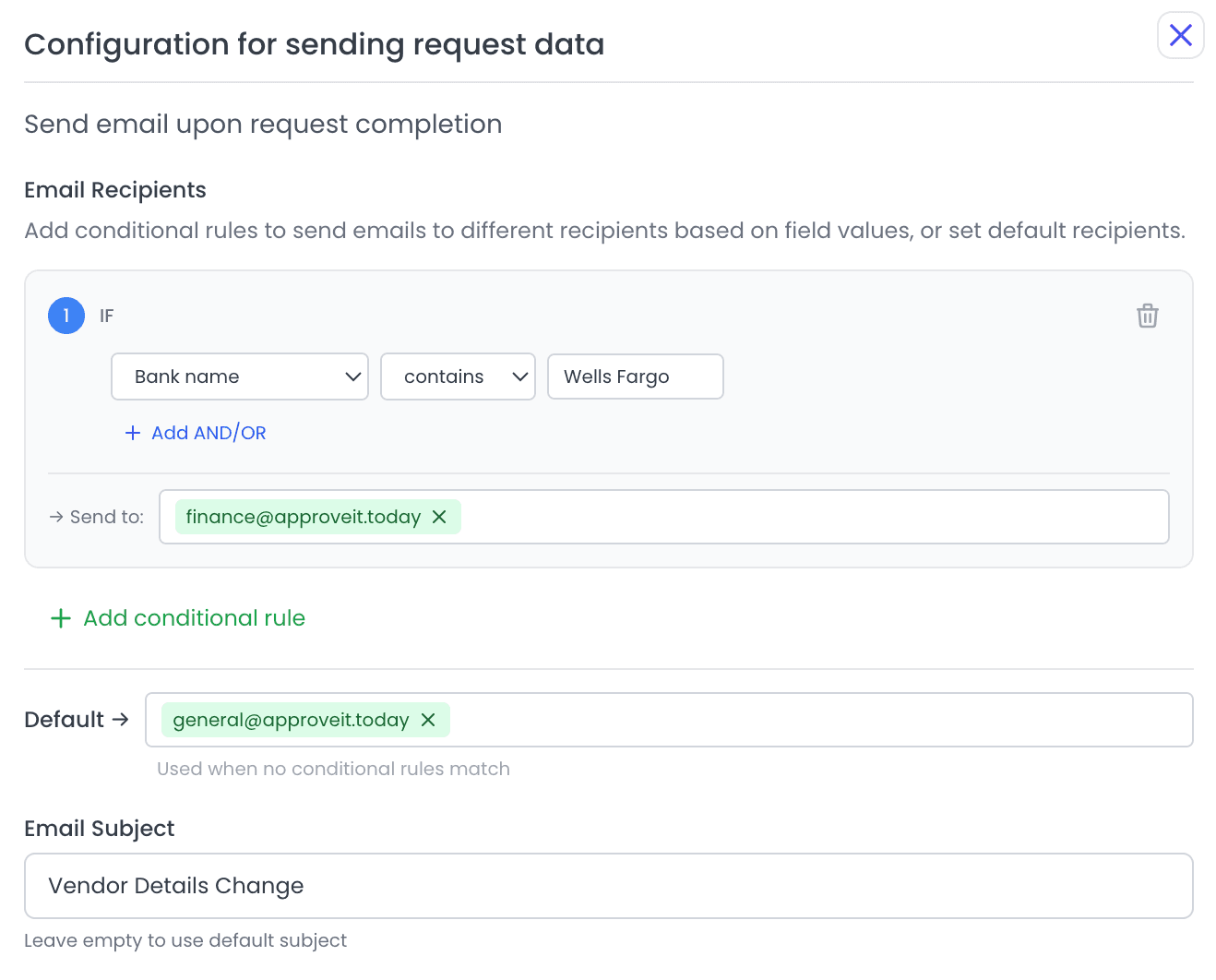
You can customize the email subject or leave it empty to use the default subject line.
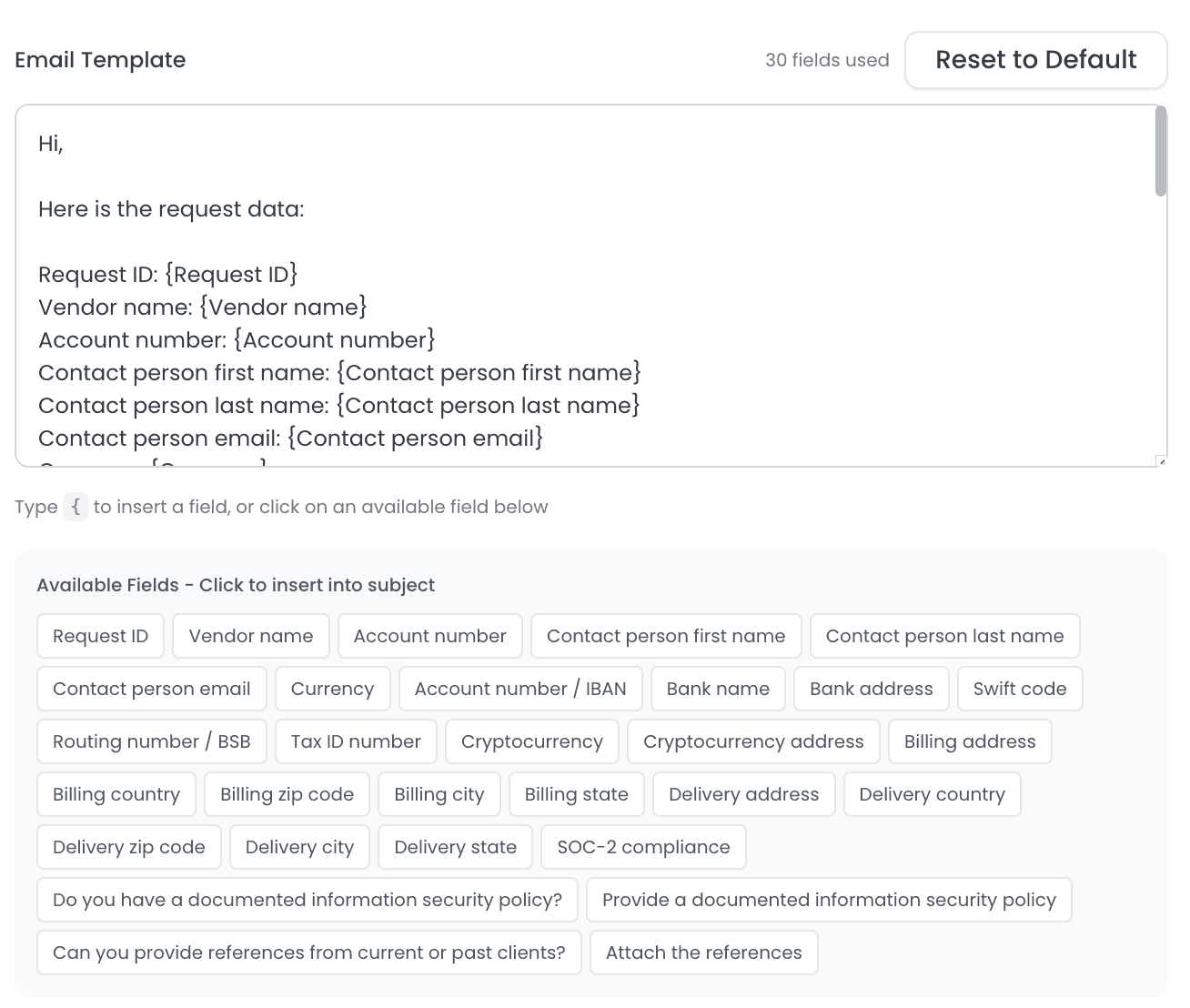
To configure the email template, you can insert dynamic fields from the request, control which data is included, and structure the email for better readability.
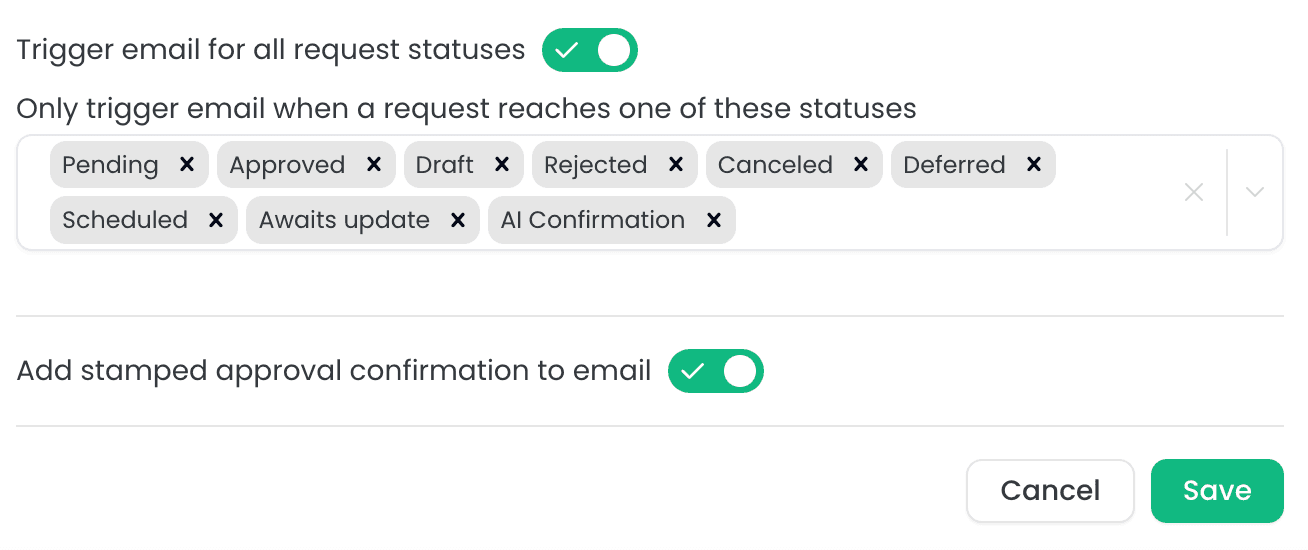
You can choose to send emails for all request statuses or define specific statuses for which emails should be sent.
You can also configure whether a stamped approval confirmation is included in the email. Note that stamped approval confirmation is available only for approved requests.
If you have any questions or need further assistance, feel free to reach out to our
support team.