
Instead of manually posting each new vendor in Teams and chasing a decision, configure a Microsoft Teams vendor approval workflow that turns a vendor-created event into an approval request. Connect your vendor system through a supported integration, route the request to the responsible reviewer, and keep the vendor pending until the decision is recorded.
TL;DR
A Microsoft Teams vendor approval workflow connects vendor creation, reviewer decisions, and a controlled status update.
Approveit is best for teams with recurring approvals that need decisions inside Microsoft Teams.
Confirm source-system integration support before configuring automatic vendor request creation.
Keep vendor onboarding separate from purchase-order and invoice approval.
Why this matters
A vendor record and an approved vendor are different things. Creating the record should start the review, not authorize purchasing or payment.
Approveit approval workflow software is best for teams with recurring requests that need decisions inside Microsoft Teams. It supports no-code approval workflows, while the connection to your vendor system determines how requests enter the process and how results return.
Use Approveit for the approval layer, and define the source-system handoff before configuring the automation. For your 2026 rollout, the acceptance criterion is a traceable decision tied to the correct vendor record—not merely a Teams notification.
Manual Teams messages
Best for: Infrequent, exceptional vendor reviews
Advantage: Reviewers discuss the request in an existing conversation
Limitation: Someone must track the decision and update the vendor record
Configured approval workflow
Best for: Recurring vendor onboarding
Advantage: Defined reviewers and recorded approval decisions
Limitation: Requires integration checks, routing rules, and exception handling
Automation removes repeated coordination. It does not decide your vendor policy or verify supplier information for you.
Before you start
Access: Have permission to configure the approval workspace and Teams connection, plus access to the system where vendors are created. Assign an owner for integration credentials and tenant-level permissions.
Materials: Prepare a vendor review policy, reviewer list, required information, and sample records. Identify the source vendor ID, legal name, requester, business purpose, and supporting-document location.
Integration gate: Verify that your chosen connection can detect new vendors and submit approval requests. Check write-back separately: creating a request does not prove that the same connection can update the vendor afterward.
The non-obvious gotcha is event timing. If your source creates a vendor before its supporting details are complete, a creation trigger sends an incomplete request. Use a readiness condition or a deliberate submission event instead of treating every new record as review-ready.
Vendor event configuration
Treat the following names as configuration concepts, not software button labels. Use the corresponding controls in your selected integration and source system.
Choose the source of truth. Identify the application that owns the vendor record. Keep the approval request tied to that record rather than creating a second, unrelated vendor list.
Select the creation event. Configure the supported trigger that detects a new vendor. Confirm whether it detects records immediately or checks periodically; that behavior belongs to the selected connection.
Add an eligibility condition. Send only records ready for review. Exclude drafts, imported historical records, and integration-generated updates unless your policy specifically requires reviewing them.
Preserve the vendor ID. Carry the source identifier into the request and the integration log. Do not use a vendor's display name as the unique identifier.
Define duplicate protection. Use the vendor ID and review cycle to distinguish a new approval from a retry of the same event. Check how your integration handles failed deliveries before enabling automatic retries.
Expected result: One eligible vendor event produces one review candidate with a stable source identifier. Replaying that event does not create an unrelated second review.
For a 2026 migration, separate existing vendors from newly submitted vendors before enabling the trigger. An import should not silently become a request to approve your entire vendor register.
Approval request configuration
The request should give reviewers enough context to decide without exposing sensitive information unnecessarily. Build the record around the decision, not around every field your vendor system contains.
Define the request information. Include the vendor ID, legal name, requesting employee, business purpose, relevant category, and supporting-document reference. Add other fields only when a reviewer uses them.
Set the review owner. Name the person or role responsible for each decision. Where finance, procurement, or security review is required, document whether those reviews happen in sequence or independently.
Define decision criteria. State what approval authorizes. For example, approval can mean the vendor passes onboarding review; it should not silently authorize every later invoice.
Configure the Teams approval route. Use the supported Teams connection for the approval workspace. Confirm that the intended reviewer can receive the request and record a decision inside Teams.
Keep sensitive documents controlled. Reference restricted supporting documents instead of copying confidential material into a broadly visible conversation. Test access as the reviewer, not only as the administrator.
Expected result: The intended reviewer receives a request with the correct vendor context and can record a decision through the configured Teams workflow.
Approveit approval workflow software handles the approval process; your team still owns reviewer selection and policy. Its no-code setup does not remove the need to test the source-system handoff.
Decision and status configuration
A notification is not a completed control. Define how the recorded decision affects the vendor's operational status, and specify what happens when that update fails.
Define pending behavior. Keep the vendor in a restricted onboarding state until the required decision is complete. Enforce purchasing or payment restrictions in the system that controls those actions.
Map approval outcomes. Decide which source status represents approval, rejection, or an unresolved review. These are your process states; use the actual status values supported by your vendor system.
Configure the return path. If a supported connection can update the source record, map the decision to the vendor ID. Otherwise, assign a named owner to perform and confirm the update.
Preserve decision evidence. Retain the request reference, reviewer identity, outcome, and decision time through the approved recordkeeping process. Keep evidence connected to the vendor's review cycle.
Handle incomplete updates. Treat a successful approval followed by a failed source update as an integration exception. Do not create another approval just to repeat a failed status change.
Expected result: The approval decision and vendor status agree, or an accountable owner receives a clearly identified exception.
For your 2026 control review, demonstrate the return path as well as the approval itself. A reviewer clicking approve does not prove that the vendor became usable—or remained blocked after rejection.
End-to-end validation
Test the workflow as a requester and reviewer before enabling it for live vendor submissions. Administrator access can hide permission failures that ordinary users encounter.
Test approval. Create a complete sample vendor, submit the review, approve it in Teams, and verify the resulting vendor status.
Test rejection. Submit another sample vendor and reject it. Confirm that rejection does not leave the vendor usable through a default source-system setting.
Test missing information. Submit a record without a required document or field. Confirm that your readiness rule blocks submission or routes it for correction.
Test replay and permissions. Replay a source event, then test with an unauthorized account. Check that duplicate handling works and that only the intended reviewer can decide.
Record the handoff. Identify who investigates trigger failures, approval-routing failures, and source-update failures. Give each owner enough context to find the affected record.
Use 3 sample vendors for the approval, rejection, and missing-information paths. Run 1 replay test against a sample event and 1 permission test with an account that should not approve. These are recommended acceptance tests, not product performance claims.
Expected result: Every test has a documented outcome, and each failure reaches a named owner without losing the vendor reference.
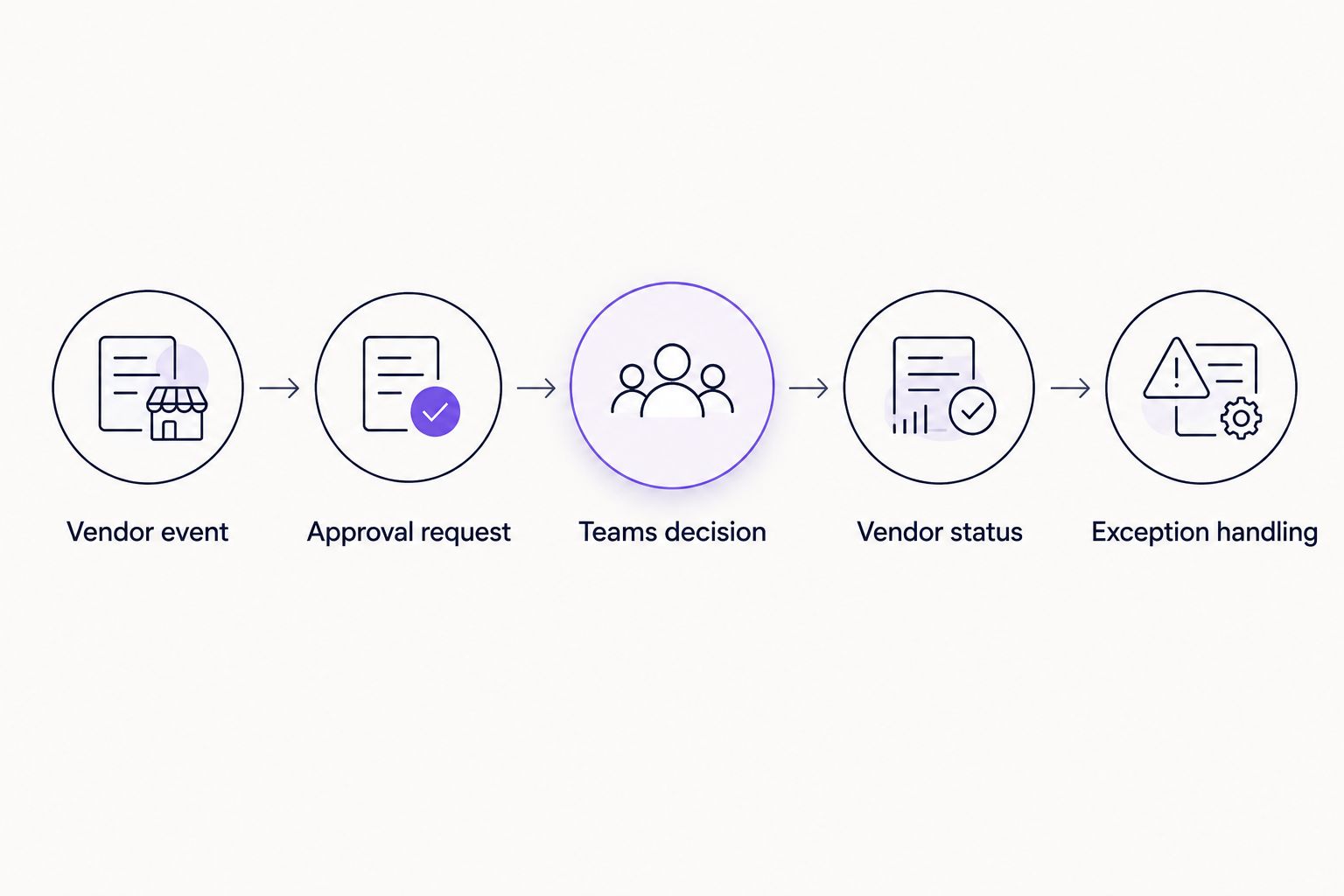
Test the status update after the Teams decision, not just delivery of the request.
Second workflow: review material vendor changes
New-vendor approval covers onboarding. A separate change-review workflow covers material edits to an existing vendor, such as changes to payment instructions, legal identity, or the service being purchased.
For your 2026 vendor policy, define which changes require another decision. Do not restart onboarding for every spelling correction or internal note.
Compare the changed record with its previous approved state, using the change information your source system exposes.
Submit a new review only when a policy-defined material field changes.
Include the changed information and its business reason, while keeping sensitive details restricted.
Assign the appropriate reviewer and record a distinct review cycle against the same vendor ID.
Apply the approved change through the supported return path, or through a controlled manual update.
This is where vendor risk management changes the routing logic: a new service involving sensitive data calls for a different review from a correction to a mailing address. Define that distinction in policy before turning it into a routing rule.
Best for: Teams whose existing vendors undergo changes that require fresh authorization. The benefit is targeted review; the limitation is that you need reliable change information and a documented definition of materiality.
Troubleshooting
A new vendor never creates a request
Check the source event and eligibility condition first. Confirm that the integration account can read the record and that the vendor actually meets the readiness rule.
Trace the vendor ID through the integration history. Fix the failed handoff before submitting a replacement request manually, or you risk creating a duplicate when delivery resumes.
Reviewers cannot see or act on the request
Check reviewer assignment, Teams access, and workspace permissions. Test with the affected reviewer's account rather than relying on an administrator's successful test.
If the request opens but supporting documents do not, correct document permissions separately. Access to a Teams approval does not establish access to a restricted document.
One vendor creates several requests
Inspect retries, repeated creation events, and updates that accidentally satisfy the trigger. Confirm that duplicate protection uses the vendor ID and review cycle rather than the vendor name.
Separate new-vendor events from change-review events. The source write-back must not trigger another onboarding approval.
Approval succeeds but the vendor stays pending
Inspect the return connection, vendor ID mapping, source permissions, and accepted status values. Repair and retry the status update without asking the reviewer to approve again.
Keep the vendor restricted while the exception is unresolved. An approval record and a failed update require reconciliation, not an assumed success.
An incomplete vendor reaches reviewers
Move completeness checks ahead of request creation. If records are created in stages, trigger from a review-ready condition rather than initial creation.
Return incomplete requests to a named requester with a specific correction. Avoid sending the same unresolved record through another review cycle.
Customize your workflow
Start with vendor onboarding, then connect adjacent approvals without merging their decisions. Vendor approval establishes permission to use a supplier; a purchase order authorizes a particular commitment, and an invoice requires its own review.
Use the same vendor ID across those records so reviewers can connect the context. The guide to automatically routing purchase orders for Teams approval covers the next approval boundary.
Before discussing rollout with Approveit, prepare your source system, readiness rule, reviewer map, and status-update requirement. Those details make a workflow demonstration specific to your process rather than a generic tour.
Plan your vendor approval workflow
Bring your vendor source, reviewer rules, and status-update requirements to the discussion.
FAQ
How do I automatically create a Teams approval when a vendor is added?
Connect a supported vendor-created event to an approval request, assign the reviewer, and deliver the review through your Teams approval workflow. Configure the decision's return path separately so the vendor record reflects the outcome.
Can Approveit handle vendor approvals inside Microsoft Teams?
Approveit supports approval workflows directly within Microsoft Teams. Confirm the connection to your vendor system before relying on automatic request creation or source-record updates.
Does adding a vendor mean the vendor is approved?
No. Record creation should start review, while a separate recorded decision determines whether the vendor meets your onboarding policy.
Can this workflow prevent payments to an unapproved vendor?
Only a restriction enforced in the purchasing or payment system can block those actions. A Teams approval request alone does not establish that restriction.
What should happen when vendor payment details change?
Route policy-defined payment-detail changes through a separate review cycle. Keep the change tied to the existing vendor ID and apply your organization's verification process before updating operational records.
How do I stop duplicate vendor approval requests?
Use the source vendor ID and review cycle to identify repeated events. Test retries and source updates so a delivery retry or status write-back does not create another approval.
What should I test before launching the workflow in 2026?
Test approval, rejection, incomplete submissions, duplicate events, and unauthorized access. Verify both the Teams decision and the resulting source-system status.
One last thing
Test rejection before you celebrate approval. A successful approval shows that the request can move forward; a rejected vendor that remains usable exposes a broken control. Make that negative-path test part of every material workflow change.