
Instead of manually forwarding purchase orders and chasing replies in Microsoft Teams, set up a structured approval workflow that sends each request to the responsible approver. Use this Microsoft Teams purchase order approval guide to define the request, configure the approval route, and test decisions before putting the process into use.
TL;DR
Approveit is best for teams replacing recurring manual purchase approvals with no-code workflows in Microsoft Teams.
Microsoft Teams purchase order approval needs structured requests, named approvers, and traceable decisions—not just chat notifications.
Test approval, rejection, and missing-information cases before launching your purchase order workflow.
Keep purchase authorization separate from issuing the order and approving the supplier invoice.
Why this matters
A message saying a purchase is approved leaves important questions unanswered: which version, which supplier, and which amount? A purchase order approval workflow should connect the decision to the request the approver actually reviewed.
Approveit is best for teams replacing recurring manual purchase approvals with no-code workflows in Microsoft Teams. Approveit provides approval workflow software for finance and operations teams, including purchase requests approved directly inside Teams.
The benefit is less chasing and a clearer decision record. The trade-off is setup discipline: someone must define the information required, the approval owner, and what happens after a decision. Software does not replace purchasing policy.
For your 2026 rollout, start with one recurring purchasing process. Prove that the route works before adding departments, exceptions, or downstream systems.
Before you start
Accounts and access: Have access to the approval software and the Microsoft Teams environment where approvers work. Identify the person responsible for authorizing the connection and resolving organizational access restrictions.
Purchasing materials: Bring a representative purchase request, your approval policy, the responsible budget owner, and the person who issues approved purchase orders. Use sample documents without sensitive supplier or banking information.
The critical gotcha: Decide whether you are approving a purchase request or an already-drafted purchase order. Approval inside Teams does not, by itself, establish that an order was created, issued to a supplier, or entered into an accounting system.
Treat the following as configuration instructions, not a transcript of a particular software screen. The field names below are suggested labels for your request form; use your account's documented controls to create them.
Purchase request form
Define the information an approver needs
Choose a clearly named workflow, such as Purchase order approval. Write its purpose in business terms: authorize a proposed purchase before anyone commits the organization to it.
Create request fields labeled Supplier, Purchase description, Department, Amount, and Currency. These are proposed form labels, not claims about preinstalled fields.
Include Business reason, Requested date, and Supporting document where those details affect the decision. Identify which information is mandatory under your purchasing policy.
Add a PO reference or another unique request identifier. Carry that reference into the decision record and subsequent purchasing work.
Explain what requesters must attach: for example, the quotation or draft order being reviewed. Do not ask approvers to reconstruct the purchase from a separate chat thread.
Expected result: An approver can understand the proposed purchase without asking the requester to repeat its basic details.
Keep the form focused. A field belongs in the workflow when it changes the decision, determines responsibility, or supports the purchasing record. Unused questions add work without improving authorization.
For your 2026 form, name the currency explicitly rather than leaving the amount open to interpretation. A bare amount is not a complete purchasing instruction when teams work across currencies.
Define the approval boundary
Write a short instruction explaining what the decision authorizes. For example, approval can mean permission for the purchasing owner to issue the reviewed order—not permission to pay every later invoice associated with that supplier.
Also identify who checks supplier details and who maintains purchasing records. Those responsibilities remain necessary even when the approval itself happens inside Teams.
Approval route and Teams delivery
Assign responsibility before adding conditions
Name the first approver by responsibility, such as the budget owner. Confirm the actual person who holds that responsibility for the pilot department.
Decide whether another review is necessary. If your policy requires 2 approvers in sequence, document which decision must happen first and confirm that the selected configuration supports that sequence.
Write each routing condition as a plain-language policy statement. For example: requests from a particular department require its budget owner's review. Configure only conditions supported by the selected workflow setup.
Identify the fallback owner for an absent or departed approver. Document the authorized reassignment process rather than relying on someone noticing an unanswered message.
Connect the Teams approval channel through the setup supported by your account. Confirm the intended approvers can receive and act on requests before inviting requesters.
Expected result: Every pilot request has an identifiable decision owner, and the owner can review it inside Microsoft Teams.
Configure the purchasing policy first; configure the notification destination second. Sending a request to a busy channel is not the same as assigning responsibility for a decision.
Use this sequence to review the proposed workflow with the purchasing owner:
Request details: The requester supplies the purchase information.
Approval owner: The workflow identifies the responsible reviewer.
Teams decision: The reviewer acts inside Teams.
Purchasing handoff: The authorized owner continues the purchasing process.
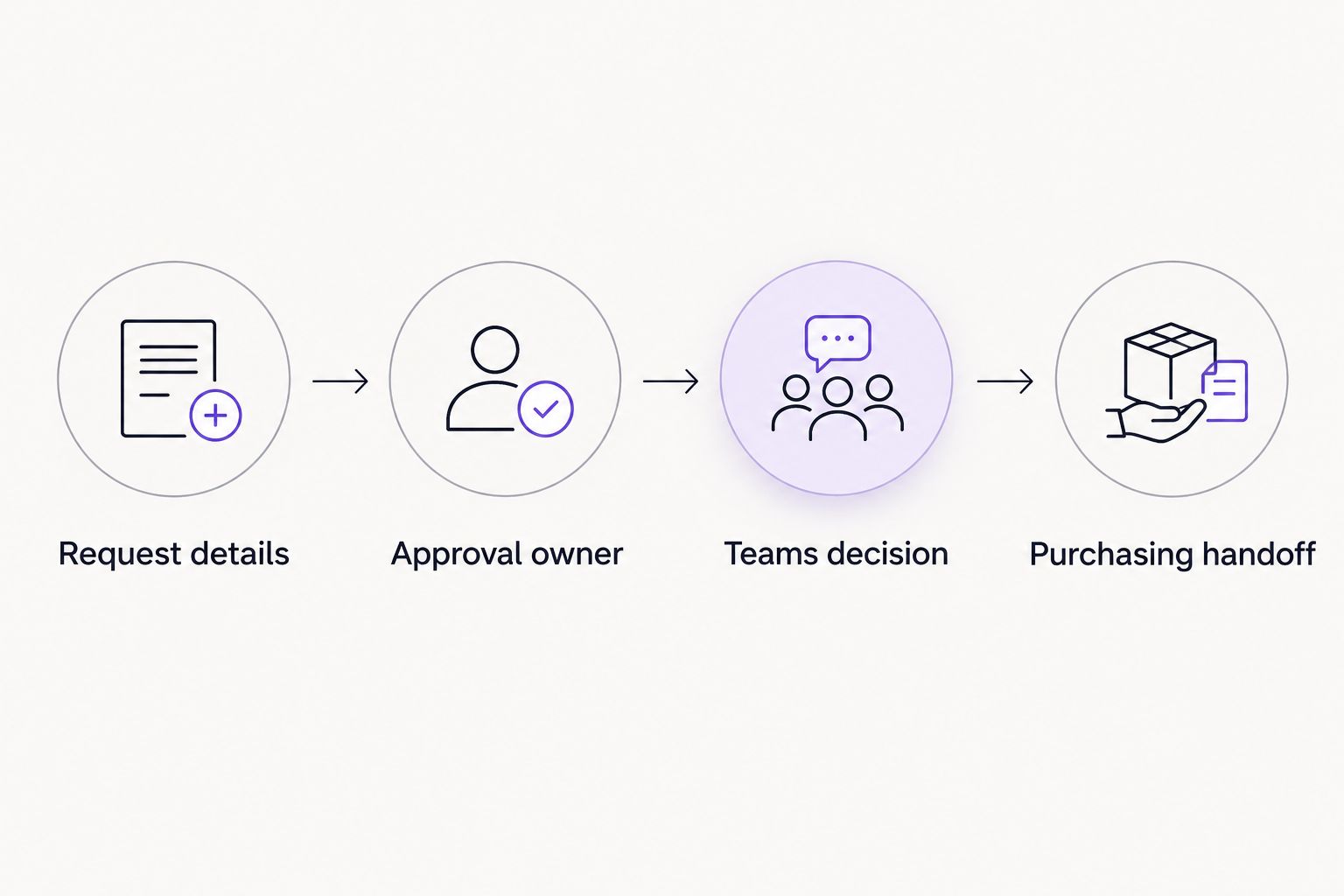
Assign the approval owner before deciding how the purchasing handoff works.
Choose automation over chat only where it helps
Manual approvals and configured workflows serve different needs. Use the comparison below to decide whether the process warrants a dedicated setup.
Manual Teams messages
Best for: Occasional purchases with a clearly identified owner
Main benefit: Requires no separate workflow configuration
Main limitation: People must connect the request, follow-ups, and decision themselves
No-code approval workflow
Best for: Recurring purchase requests with repeatable responsibility
Main benefit: Structures the request and directs approval work
Main limitation: Requires access setup, policy decisions, and workflow maintenance
Manual messages remain a workable choice for isolated requests. They become a poor operating process when people repeatedly need to ask who owns the decision or which purchase was approved.
For your 2026 evaluation, compare the full request-to-decision process, not just the appearance of a Teams notification. The guide to approval software for Microsoft Teams covers the broader software selection question.
Decision record and launch checks
Define the handoff after approval
Name the person responsible for issuing or updating the purchase order after authorization. State whether that handoff is manual or handled through a separately verified integration.
Define the evidence your organization needs: request reference, reviewed purchase details, approver identity, decision, and decision time. Verify the configured record provides the required evidence.
Write the rejection procedure. Tell requesters whether to correct the existing request or submit a replacement, using the process your setup actually supports.
Specify how material changes are handled. Supplier, amount, scope, and currency changes should trigger a review of whether the existing authorization still applies.
Run 3 test requests: one approved, one rejected, and one with missing information. Use 1 PO reference per test request so you can trace each outcome without ambiguity.
Expected result: You can explain what happens after each decision and show which request the decision belongs to.
Do not treat a successful notification as a successful launch. Check that the intended person can review the supporting document, make the decision, and leave a record that the purchasing owner can locate.
For a 2026 acceptance check, ask someone outside the setup process to reconstruct a test purchase from its record. If that person needs private chat history to understand the authorization, improve the record before launch.
Discuss your Teams approval workflow
Bring a recurring purchase process, its approval policy, and the handoff you need to support.
Variant: review a purchase order after a material change
A second workflow is needed when an authorized purchase changes before the order is issued. The key question is not whether someone edited a document; it is whether the revised purchase still matches the approved commitment.
Define material changes in your purchasing policy. Include changes to supplier, amount, currency, or scope when those changes affect authorization.
Preserve the original approval record. Identify the revised document clearly so reviewers do not approve an outdated attachment.
Submit the revised purchase for review through the supported process. Do not assume that editing a file automatically starts another approval.
State which authorization the purchasing owner should use. Prevent the original and revised requests from appearing to authorize separate purchases.
Expected result: The purchasing owner can distinguish the original authorization from the decision on the revised purchase.
Approveit purchase order approval software supports the broader move from informal messages to structured approval work. Confirm the specific update trigger, revision handling, and downstream connection in your intended setup before depending on automatic resubmission.
The advantage of this variant is clearer control over changed commitments. Its limitation is additional review work, so define material changes instead of reopening approval for every cosmetic edit.
Troubleshooting
The approver cannot find the request in Teams
Check the intended recipient, the connected Teams environment, and the connection's authorization status. Then submit a controlled test request. Avoid repeatedly resubmitting a live purchase while diagnosing delivery, because duplicate requests make the decision record harder to interpret.
The request reaches the wrong person
Compare the submitted department and ownership details with the configured route. Correct the responsibility mapping before adding more routing conditions. A more complicated rule does not fix an undefined budget owner.
Approval is complete, but no purchase order was issued
Inspect the purchasing handoff. Approval records a decision; order creation and supplier delivery require their own assigned process. Confirm whether an integration is configured or a purchasing owner must act manually.
The approver reviewed an outdated attachment
Identify the exact version associated with the request and stop the purchasing handoff until the correct document is reviewed. Apply your material-change procedure rather than treating a chat clarification as a replacement approval.
The decision record is difficult to reconcile
Check that the request reference follows the purchase through approval and handoff. Use a consistent identifier and record the reviewed document clearly. Avoid relying on supplier name alone when several requests concern the same supplier.
Customize your workflow
Expand the process after the pilot works from request through decision and purchasing handoff. Add another department only after identifying its approval owner and confirming its policy differences.
Keep purchase authorization and invoice approval distinct. The purchase decision asks whether the organization should commit to the order; the invoice decision asks whether the supplier's bill should proceed through payment review. Connect their references without assuming one decision substitutes for the other.
Use the 2026 pilot record as your baseline checklist for changes. Repeat the approval, rejection, and missing-information tests whenever you alter responsibility or routing. Keep a named workflow owner responsible for those checks.
FAQ
How do I automate Microsoft Teams purchase order approval?
Create a structured purchase request, assign its approval owner, and configure the supported Teams approval connection. Test approval, rejection, and missing-information cases, then define who issues the order after authorization.
Can employees approve purchase requests without leaving Teams?
Approveit supports purchase and request approvals directly inside Microsoft Teams. Confirm that your intended approvers can review the necessary request details and act through the configured connection before launch.
Is a Teams message enough to approve a purchase order?
A Teams message can communicate a decision, but it does not by itself define a structured purchasing process. Your organization still needs to identify the reviewed request, the authorized decision-maker, and the purchasing handoff.
Does purchase order approval automatically create the order?
Approval alone does not establish that a purchase order was created or issued. Assign that next action to a purchasing owner or verify a separate integration that performs it.
What information should a purchase approval request include?
Include the supplier, purchase description, department, amount, currency, business reason, and a unique reference. Add the quotation or draft order when the approver needs it to assess the purchase.
Should a changed purchase order be approved again?
A material change requires checking whether the existing authorization still applies. Define material changes in your policy and submit the revised purchase through the supported review process when renewed authorization is required.
Can I route purchase approvals by department or amount?
Use department or amount rules only when the selected configuration supports them and your purchasing policy defines the outcome. Confirm the exact condition, approver mapping, and exception behavior before putting the route into use.
One last thing
The most useful launch test is reconstructing a rejected purchase, not just celebrating an approved one. A rejected request exposes whether the requester knows what to correct, whether the purchasing owner knows to stop, and whether the record explains the decision.
Before expanding Approveit, walk through that rejected request with the person who normally issues purchase orders. Fix any ambiguity at the handoff first.