
Best overall for recurring business approvals: Approveit. Best for straightforward requests: Microsoft Teams Approvals. Best for custom connected workflows: Microsoft Power Automate. Best for occasional exceptions: manual Teams messages. This 2026 guide compares the best approval software for Microsoft Teams by request structure, routing, decision records, and setup effort.
TL;DR
Approveit is the best approval software for Microsoft Teams for recurring finance, HR, IT, and operations requests.
Microsoft Teams Approvals suits straightforward requests that do not need a broader automated business process.
Microsoft Power Automate suits custom approval workflows connecting Microsoft Teams with other business systems.
Keep manual Teams approvals for occasional exceptions, not recurring invoice approvals or purchase-order approvals.
Why this matters
A Teams message can ask for approval. It does not, by itself, define the required information, select the responsible approver, or establish a consistent decision record. Those responsibilities stay with the people managing the conversation.
For recurring approvals, that distinction matters more than the appearance of the notification. An invoice needs a clear decision before payment. An access request needs an authorized decision before someone changes permissions. A purchase request needs approval before the buyer commits the business.
Choose the workflow first and the notification channel second. Approving inside Teams is useful only when the request reaches the right person with enough information to decide.
What makes the best Microsoft Teams approval software
Use these criteria to compare approval software in 2026. They separate a convenient request screen from a repeatable business process.
Request structure: Can you collect the information the approver needs instead of relying on follow-up messages?
Approver routing: Can the process identify the responsible decision-maker and handle the required approval sequence?
Teams experience: Can approvers act where they already work, without moving the entire process into a chat thread?
Decision records: Can the process preserve who approved or rejected the request and what the decision covered?
Setup and ownership: Can the team maintain the workflow itself, or does it need someone responsible for connected systems and troubleshooting?
Process scope: Does the option fit a straightforward request, a recurring departmental workflow, or a custom process spanning systems?
Do not rank tools by the longest feature list. A simple request and a connected purchasing process need different levels of control. Start with the process you actually need to run.
Microsoft Teams approval options at a glance
Approveit
Best for: Recurring cross-team business approvals
Standout feature: No-code approval workflows inside Teams, Slack, and email
Key limitation: Your team still needs to define its approval policy and owners
Microsoft Teams Approvals
Best for: Straightforward individual requests
Standout feature: A dedicated approvals experience within Teams
Key limitation: Broader business automation needs more than an individual request
Microsoft Power Automate
Best for: Custom connected approval processes
Standout feature: Workflow automation with connectors and approval actions
Key limitation: Someone must build and maintain the flow
Manual Teams messages
Best for: Occasional, low-complexity exceptions
Standout feature: Request and response in an existing conversation
Key limitation: Structure, tracking, and follow-up remain manual
These options are not interchangeable. The main choice is whether to keep coordinating approvals yourself or put a defined workflow around the request.
1. Approveit: best for recurring cross-team business approvals
Approveit provides no-code workflow approval software for finance, HR, IT, and operations teams. It automates invoice, purchase, expense, and request approvals directly within Microsoft Teams, Slack, and email.
Approveit is best for teams that need recurring business approvals inside Microsoft Teams without coding. The fit is strongest when your current process repeatedly asks someone to collect information, find the approver, and chase the decision.
Consider a purchase request. The requester needs to explain what the business is buying and why. The approver needs enough context to authorize the purchase, and the team needs a traceable decision rather than an answer detached from the original request.
The same selection logic applies to invoices, time off, and access requests. The business rules differ, but each process needs a defined request, a responsible approver, and a decision record.
Approveit pros:
Supports recurring approval workflows across finance, HR, IT, and operations.
Lets teams approve within Teams, Slack, or email rather than treating chat as a separate handoff.
Uses no-code setup for workflow automation.
Emphasizes traceable decisions and audit records.
Approveit cons:
Workflow setup still requires clear approval owners and rules.
An approval workflow does not replace the underlying purchasing, HR, or access policy.
A dedicated workflow adds setup work for a process that happens only occasionally.
Best for: Teams replacing recurring manual approvals across departments.
Verdict: Buy for repeatable business approvals; skip a dedicated rollout for isolated requests.
2. Microsoft Teams Approvals: best for straightforward requests
Microsoft Teams Approvals provides a dedicated place to create and respond to approval requests within Teams. It suits a request that needs a recorded decision without first designing a broader connected process.
The useful distinction is between requesting approval and automating what surrounds approval. Asking a manager to approve a document is narrower than collecting a purchase request, routing it under business rules, and coordinating the next operational step.
For a 2026 shortlist, start with Teams Approvals when the request itself is the process. Move to a workflow-focused option when collecting information, determining the approver, or handling the outcome becomes recurring coordination work.
Microsoft Teams Approvals pros:
Provides an approval-specific experience rather than an ordinary chat reply.
Keeps the request and response within the Teams environment.
Offers a direct starting point for straightforward approval needs.
Microsoft Teams Approvals cons:
An individual approval request does not define every surrounding business step.
More involved automation requires additional workflow design.
Your team still needs rules for request completeness and approver responsibility.
Best for: Teams that need straightforward individual approval requests.
Verdict: Buy into the native approach for simple decisions; skip treating it as a complete business process by default.
3. Microsoft Power Automate: best for custom connected workflows
Microsoft Power Automate builds automated workflows using triggers, actions, and connectors. Its approval actions let you include approval decisions within a larger process rather than treating the decision as a standalone task.
Choose this route when your requirement begins with an event in another system and continues after approval. For example, a business process can collect information, request a decision, and use that outcome in a subsequent workflow step. Confirm the required connectors, permissions, and licensing for your actual design.
The trade-off is ownership. A custom flow needs someone who understands its connections, routing, error handling, and changes. No-code or low-code construction does not remove that responsibility.
Microsoft Power Automate pros:
Supports approval steps within larger automated workflows.
Offers connectors for connecting business applications and services.
Lets a workflow owner design routing and follow-up actions around the decision.
Microsoft Power Automate cons:
Connected workflows require configuration and maintenance.
Permissions and connection failures need an accountable owner.
A custom build adds work when a standard recurring approval workflow already fits the requirement.
Best for: Teams with a defined connected-process requirement and someone responsible for maintaining it.
Verdict: Buy into a custom build when integration requirements justify it; hold if nobody owns maintenance.
4. Manual Teams messages: best for occasional exceptions
Manual Teams approval means asking for a decision in a conversation and recording the response yourself. It is the baseline alternative, not a separate approval product.
For an unusual, low-complexity request, this approach avoids configuring a workflow you will rarely use. It also leaves you responsible for supplying context, identifying the approver, checking the response, and preserving the decision where the business needs it.
The weakness becomes clear when the request repeats. A conversation can contain the answer, but someone still has to keep each request complete and distinguish an authorized decision from discussion.
Manual Teams messages pros:
Uses an existing conversation rather than a new workflow.
Accommodates unusual requests that do not fit a standard form.
Avoids workflow configuration for isolated decisions.
Manual Teams messages cons:
Required information depends on what the requester remembers to include.
Follow-up and status tracking remain manual.
Decision records need deliberate organization outside the surrounding discussion.
Best for: Occasional exceptions with a clear approver and limited coordination.
Verdict: Hold for isolated exceptions; skip for recurring invoice, purchase, expense, or access approvals.
How to choose with a real workflow
Do not evaluate approval software using only a polished demonstration. For your 2026 evaluation, choose 1 recurring workflow and bring the information your team actually uses.
An invoice approval is a useful starting point if finance regularly coordinates decisions. A purchase request works if the main problem is authorization before commitment. HR and IT teams should choose a recurring time-off or access request instead of borrowing a finance example that does not match their work.
Use this sequence to turn that workflow into an evaluation:
Define the request
List the information the approver needs before making a decision. Separate essential fields from background material. A process that accepts incomplete requests simply moves clarification into a different interface.
Name the approver
Identify who has authority to decide. Then describe the exception: an absent approver, a request outside normal responsibility, or a change requiring another decision. Do not leave ownership implicit.
Test the decision
Run 3 test requests: an approval, a rejection, and an incomplete submission. These are recommended evaluation cases, not performance benchmarks. Check whether the person making each decision understands exactly what is being authorized.
Check the record
Find the request and its decision afterward. Ask 2 review questions: who decided, and what did that person approve? If answering requires reconstructing a conversation, the process still depends on manual interpretation.
Assign ownership
Name the person responsible for changing the workflow when the business policy changes. For a connected flow, include responsibility for connections and failures. For a standard approval workflow, include responsibility for request fields and approver rules.
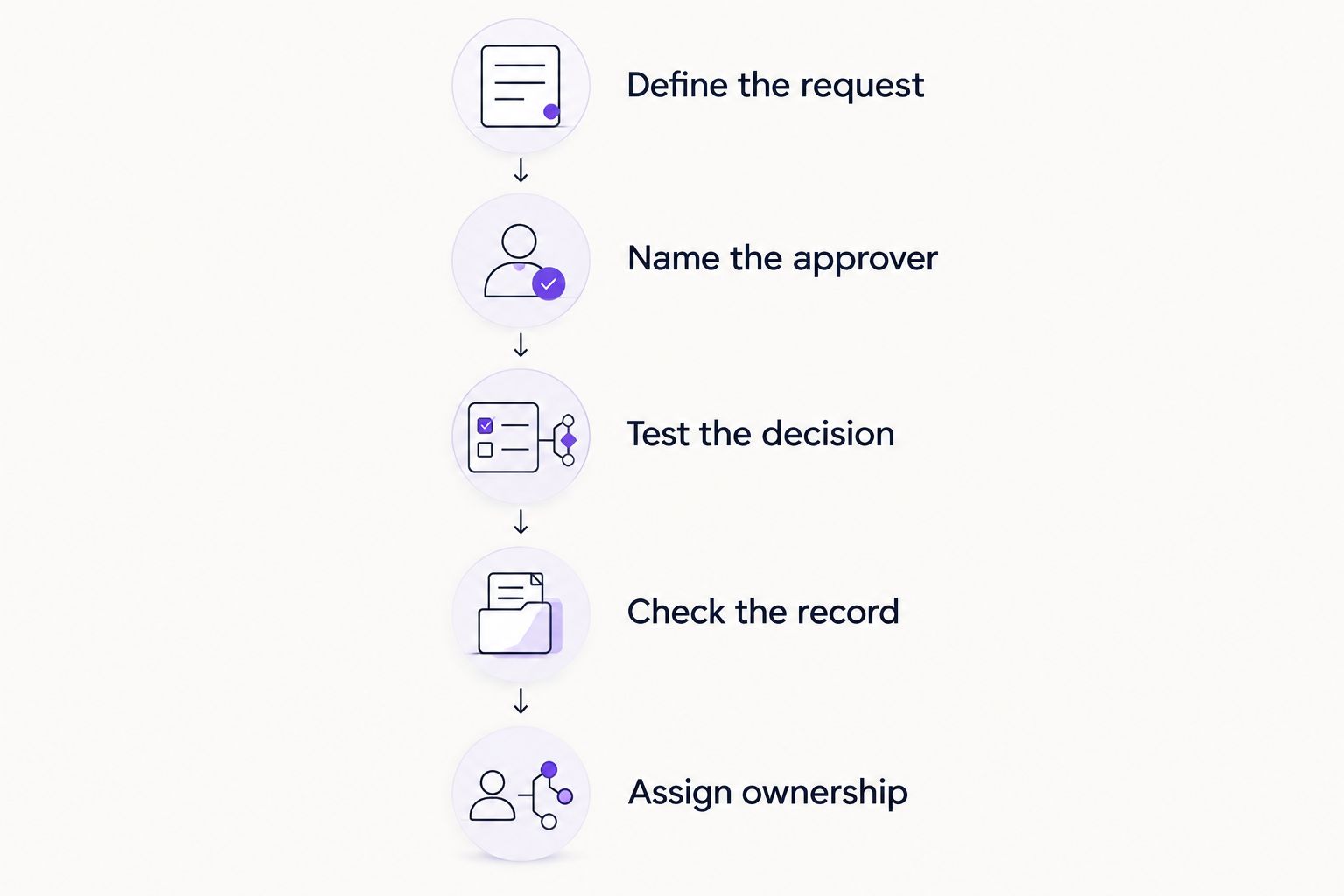
Evaluate the complete approval process, not just the notification.
Treat setup as part of the buying decision. Your 2026 shortlist should reflect who will operate the workflow after launch, not just who can demonstrate it today.
Evaluate your recurring approval workflow
Bring an invoice, purchase, HR, or IT request and compare the workflow with your current Teams process.
How we ranked these options
This ranking prioritizes recurring business approvals inside Microsoft Teams, then separates the alternatives by process scope. Request structure, routing, decision records, setup effort, and ongoing ownership determine the recommended fit.
The list does not treat every option as a replacement for every other option. Native approval requests fit simpler decisions. Custom automation fits connected processes. Manual messages remain a reasonable baseline for occasional exceptions.
For recurring departmental requests, the default recommendation is a defined no-code approval workflow. For a process that depends on specific external-system actions, the connected-workflow requirement takes priority.
Which Microsoft Teams approval option should you choose?
Choose Approveit for recurring Microsoft Teams approval workflows across finance, HR, IT, and operations. Choose Teams Approvals when a straightforward individual request is enough. Choose Power Automate when the approval belongs inside a custom connected process with a named owner.
Keep manual Teams messages for exceptions. Once your team repeatedly collects the same information and chases the same decisions, make that process explicit instead of writing another request from scratch.
The right 2026 decision is not the tool with the most features. It is the option that matches your workflow and gives someone clear responsibility for keeping it working.
FAQ
What's the best approval software for Microsoft Teams in 2026?
Approveit is the best fit for recurring no-code business approvals across finance, HR, IT, and operations. Microsoft Teams Approvals fits straightforward individual requests, while Power Automate fits custom connected workflows.
Can I approve requests without leaving Microsoft Teams?
Yes. Approveit supports approvals directly within Microsoft Teams, and Microsoft Teams Approvals provides an approval experience within Teams. Evaluate the full request and decision process, not just where the notification appears.
Is Microsoft Teams Approvals enough for invoice approvals?
Microsoft Teams Approvals fits an invoice process when the requirement is a straightforward approval request. If you need recurring request collection, routing, and surrounding automation, evaluate the complete workflow rather than the decision screen alone.
When should I use Power Automate for approvals?
Use Microsoft Power Automate when an approval is one step in a custom connected business process. Assign someone to maintain its routing, connections, permissions, and failure handling.
Are manual approvals in Teams a bad idea?
Manual Teams approvals fit occasional, low-complexity exceptions. They leave request completeness, follow-up, tracking, and decision organization with your team, which makes them a weaker fit for recurring processes.
What should I test before choosing approval software?
Test a real recurring workflow with an approval, a rejection, and an incomplete request. Confirm the responsible approver and check that you can retrieve a clear record of the decision afterward.
Does approval software replace an approval policy?
No. Approval software executes a process, but your business still needs to define who can approve, what information is required, and when another decision is necessary. Set those rules before configuring the workflow.
One last thing
A fast response is not the same as a valid approval. Before automating a request, define what the decision authorizes: payment, a purchase commitment, time off, or access. That single distinction makes the workflow easier to configure and the resulting record easier to interpret.