
Instead of manually chasing expense approvals through email threads, set up an email expense approval workflow that routes each request to its approver and records the decision. Approveit supports expense approvals through email; before treating an email reply as approval, confirm the supported response method and test that it updates the correct request.
TL;DR
Approveit suits teams that need recurring expense approvals through email, Slack, or Microsoft Teams.
An email expense approval workflow should automate routing and records, not assume every reply authorizes spending.
Confirm how an approver submits a decision before enabling reply-based expense approvals.
Test sender identity, request matching, and duplicate responses before routing live expenses.
Why this matters
An email saying approved and a recorded expense approval are not the same thing. Finance needs to know which expense received approval, who authorized it, and whether the decision applies to the current request.
Approveit approval workflow software is best for teams with recurring expense requests that need decisions recorded outside scattered email threads. Its no-code approach supports approvals within email, Slack, and Microsoft Teams. Start with Approveit when evaluating how those channels fit your approval process.
For your 2026 rollout, separate the human decision from the automated work around it. Automate request routing and decision recording; keep authorization with the designated approver. An email response must not become permission to approve an unrelated or changed expense.
Before you start
Access and ownership: Arrange access to your approval workspace, a workflow owner, the intended approvers, and the email accounts used for testing. Decide who maintains the expense approval policy.
Request materials: Prepare a sample expense with its requester, amount, currency, business purpose, receipt, and responsible approver. Define what finance needs before accepting a decision.
The critical gotcha: Confirm whether the configured email process accepts direct replies, uses an action in the notification, or requires another supported response method. Do not assume typing approved creates a recorded decision.
Treat reply handling as a launch requirement, not an assumption. Email-based approval describes the channel; reply-based approval describes a specific interaction that must work end to end.
Choose the approval interaction
Use this comparison to decide what your team actually needs. The automated configuration belongs in production only after its supported response method passes testing.
Manual email approvals
Best for: Occasional requests with a clearly assigned owner
Advantage: Approvers can respond in an existing conversation
Limitation: Someone must reconcile messages with the expense record
Configured email approval workflow
Best for: Recurring expenses with repeatable routing
Advantage: Connects the request, approver, and recorded decision
Limitation: Requires setup and verification of the email response method
Reply-based approval, when supported
Best for: Teams that specifically need decisions submitted by replying
Advantage: Keeps the response inside the email conversation
Limitation: Requires reliable sender identification and request matching
Choose the configured email workflow for recurring requests; require a separate test before promising reply-based approval. Approveit supports email approval workflows, but your operating procedure must match the response method configured for your team.
Manual approvals remain a practical option for isolated exceptions. Their weakness is the reconciliation work: a person still has to establish which message represents the final decision. A configured workflow shifts that work into a repeatable process, but only when request ownership and approval rules are clear.
Expense request configuration
Start your 2026 setup with a written request specification. The bold terms below are suggested labels for your expense process, not instructions to select identically named interface controls.
Define the request fields. Include Requester, Expense amount, Currency, Business purpose, and Receipt in your specification. Add a project or department only when it changes routing or finance review.
Define the approval owner. Name the person or role responsible for approving the expense. Write down how your team resolves an absent approver before a request enters the workflow.
Separate approval from payment. State that an approved expense authorizes the next finance action; it does not, by itself, establish that reimbursement occurred.
Define the decision record. Require the request reference, approver identity, decision, and decision time in the record your team reviews. Specify where finance will verify completion.
Expected result: You have a complete expense request and an unambiguous approval owner before configuring email delivery.
For example, an employee submits a travel expense with its receipt and business purpose. The responsible manager decides whether the expense meets policy. Finance then checks the approved record before handling reimbursement through its existing payment process.
Keep the request focused. A field earns its place when it changes the approval decision, routing, or finance review. Unused fields create extra work without strengthening the control.
Email routing and response configuration
Configure the email path around the request record, not around a general conversation. The destination mailbox is only part of the setup; the decision must return to the correct expense.
Identify the recipient. Use the designated approver's email identity. If your team uses a shared inbox, establish how the process identifies the individual making the decision before allowing it into the approval path.
Check the notification context. Verify that the approver can identify the requester, expense, and required action from the notification and its associated request. Avoid placing sensitive receipt details into broadly forwarded messages.
Confirm the response method. Follow the supported method presented by the configured approval process. If the requirement is approval by email reply, verify that exact behavior rather than substituting an ordinary reply to a notification.
Define exception handling. Decide who handles an unclear response, an absent approver, or a message that does not update the request. Keep the request unresolved until an authorized decision is recorded.
Expected result: The intended approver receives an identifiable expense request and can submit a decision through a verified email interaction.
Do not publish a reply keyword unless the supported workflow explicitly defines it. Words such as approved can appear in quoted messages, explanations, and questions. A safe operating procedure tells approvers exactly how to respond without treating ordinary discussion as authorization.
For your 2026 procedure, document the actual interaction after testing. Include what the approver receives, how the approver responds, and where finance checks the result. That short procedure is more useful than a generic instruction to approve by email.
Decision recording and launch tests
Test the complete path before sending live expense requests. A delivered email proves delivery, not successful approval.
Submit a complete request. Use a recognizable test expense and its intended approver. Keep 1 expense per request during the initial test so request matching is easy to inspect.
Run the normal decision path. Have the assigned approver use the supported email response method. Open the associated request and verify that the recorded outcome matches the decision.
Run exception cases. Prepare 3 test requests covering approval, rejection, and an incomplete submission. Confirm that each follows your written policy rather than assuming all responses behave alike.
Check duplicate handling. Send 2 responses associated with the same test request. Confirm that the second response does not silently create a separate expense or overwrite a decision without an understandable record.
Check authorization. Test a response from someone who is not the assigned approver. Do not launch a reply-based process that accepts an unauthorized sender's decision.
Expected result: Each accepted decision belongs to the intended request and authorized approver, and finance can distinguish approved, rejected, and unresolved expenses.
The launch sequence is simple: prepare the request, route it, collect the decision, then inspect the record. Keep the inspection step even when the email interaction appears successful.
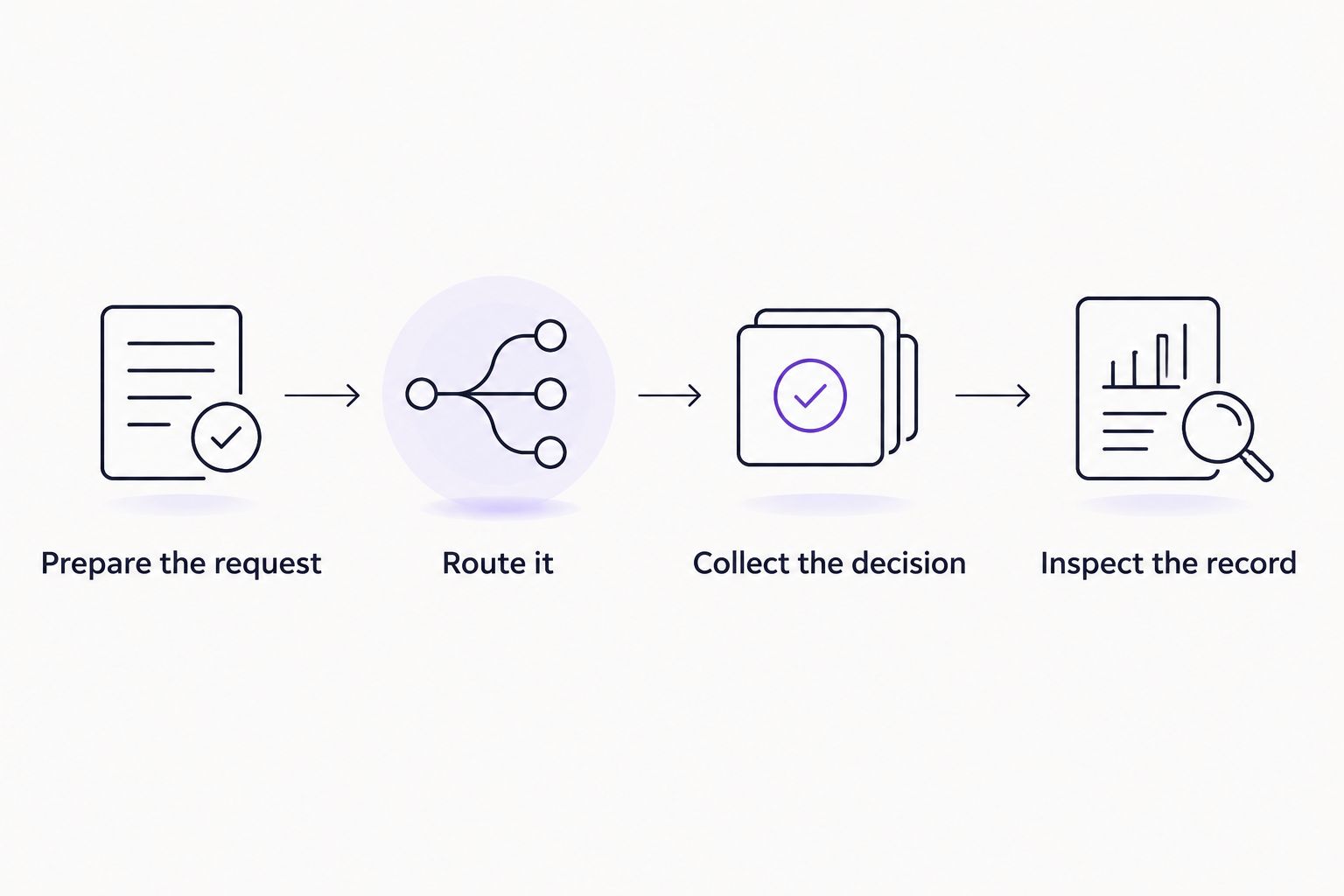
Verify the recorded outcome, not just the email response.
Use the same tests whenever you change the approval route or response method. Your 2026 launch checklist should remain useful after the initial setup, not become an archived document nobody revisits.
Variant: review a changed expense before approval
An expense that changes after submission needs an explicit review rule. Approval of the original request should not become approval of different spending simply because the email thread continues.
Identify material changes. Define which changes require another review, such as a different amount, currency, receipt, or business purpose.
Choose the supported resubmission path. Use the workflow's supported revision process, or submit a replacement request under your documented policy. Do not assume an email edit updates the underlying expense.
Make the current version clear. Tell the approver which request requires a decision. Mark the earlier request according to your process so finance does not treat both as payable expenses.
Verify the new decision. Check that the recorded approval applies to the revised expense rather than the original submission.
Expected result: Finance can identify the current approved expense without interpreting a chain of corrections.
This variant is best for expenses that require missing receipts or corrected details before approval. Its advantage is clearer decision context; its trade-off is another review step. Define material changes narrowly enough that cosmetic edits do not create unnecessary approval work.
Troubleshooting
The approver replied, but the request is still pending
Check whether direct replies are the supported decision method. A normal email response does not establish that the workflow received an approval action. Have the assigned approver use the configured method, then inspect the request record.
The decision came from a forwarded message
Verify the decision-maker's identity and authority. Forwarding an approval email must not transfer approval responsibility under your policy. Keep the expense unresolved until the designated approver records a valid decision.
Finance cannot tell which expense was approved
Compare the request reference and expense details with the recorded decision. If a thread contains several expenses, separate them into distinct requests. Do not infer that a broad reply approves every item mentioned in the conversation.
A revised expense still shows an earlier approval
Check which request version received the decision. Follow your resubmission rule for material changes and obtain approval for the current expense. Keep the earlier decision distinguishable from the replacement.
The email never reaches the approver
Confirm the recipient address, then inspect spam, quarantine, and organizational mail filtering. Ask the email administrator to investigate blocked delivery. Do not bypass the approval owner merely to move the expense forward.
Customize your workflow
Expand the process only after the basic expense path works. Start with the request type that generates repeated follow-ups, then use its tested approval rules as a reference for adjacent work.
For a 2026 expansion, consider purchase requests or invoice approvals as separate workflows. Each needs its own required information and approval owner; an expense policy is not automatically a purchasing policy.
Approveit approval workflow software also supports approvals within Slack and Microsoft Teams. That gives teams another channel to evaluate when approvers work there, without making email the default for everyone. Confirm the interaction and decision record in each channel before rollout.
Bring a real expense example to a product discussion. Ask to see the submission, approver notification, supported response method, and resulting decision record. Include a changed expense and an unauthorized response in the demonstration requirements.
Evaluate your expense approval workflow
Use a real expense request to check email decisions, routing, and the approval record.
FAQ
Can I automatically approve expense requests by replying to an email?
Only use email replies as approval actions when the configured workflow explicitly supports them. Confirm that the response records the assigned approver's decision against the correct expense; an ordinary reply is not sufficient proof.
What is an email expense approval workflow?
An email expense approval workflow routes expense requests to approvers through email and connects their decisions to request records. The exact response method depends on the configured process.
Does Approveit support expense approvals through email?
Approveit supports expense approval workflows through email, as well as Slack and Microsoft Teams. Verify the specific email interaction before promising that approvers can authorize expenses by typing a reply.
What information should an expense approval request include?
Include the requester, expense amount, currency, business purpose, receipt, and responsible approver. Add department or project information when it affects routing or finance review.
Should a forwarded approval email let another person approve?
Forwarding a notification should not transfer approval authority under your policy. Verify the decision-maker's identity and obtain the designated approver's recorded decision before treating the expense as approved.
What happens when an expense changes after approval?
A materially changed expense needs review under your revision policy. Make the current request clear and verify that its approval covers the revised details rather than the earlier submission.
Does expense approval mean the employee has been reimbursed?
No. Expense approval and reimbursement are separate business events. Finance should verify the approved request and then handle payment through its established reimbursement process.
One last thing
The most useful launch test is an approval that should fail. A successful response shows that the normal path works; an unauthorized response tests whether your approval boundary holds. Keep that negative test in your checklist whenever routing or email behavior changes.